

LTI-Tool
 The course element LTI Tool is intended for the integration of external learning applications into the learning platform. The abbreviation LTI stands for Learning Tool Interoperability. With it, you can integrate external software such as an external chat, a Mediawiki, a test editor, or a virtual chemistry lab into the course.
Use from the learner's perspective
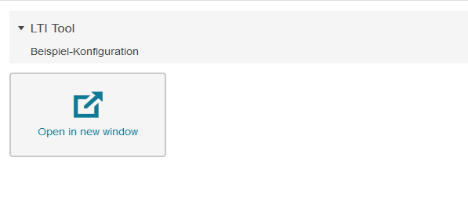
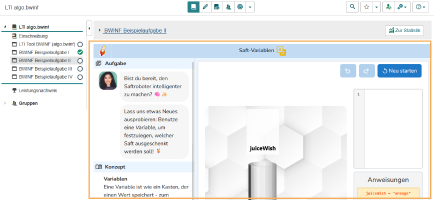
Depending on the author's configuration, opening the LTI Tool course element will either display the content in the course content area or display the Open in new window button.
Clicking this button opens the external learning application in a new browser tab. Based on the author's configuration, the required login and user data are securely transmitted to the integrated learning application in the background and processed there. For an overview of data transmission, see the page Data- and Parameter transmission.
Use from the author's perspective
In the course editor
The following functions are available to you in the course editor:
Add a course element LTI-Tool
Erläuterung zum Hinzufügen eines Kursbausteins aufklappen ...
To integrate a course element into your course, proceed as follows:
1 | Open the course you want to edit. Use the pencil icon at the top of the page to open the editing mode. |
|
2 | Select a course element from the menu on the right. |
|
3 | In the new window, you can define the position of the new course element within your course structure (left navigation pane). The available positions are marked with an insert icon. To insert the new course element into an existing substructure, you need to open the substructure by clicking on the small triangle symbol next to its title. The area will open and you will again see insert icons at the positions which are available. Click on the insert icon at the desired position within the structure. The selected area will be highlighted. Confirm your choice with Insert course element. |
|
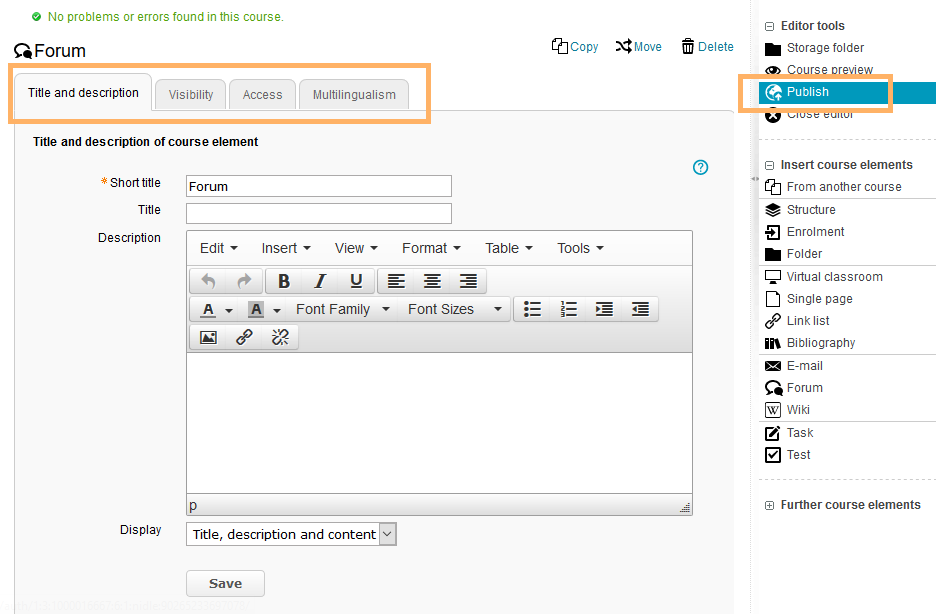
4 | The element will be inserted into the course structure at the selected position. Depending on the course element, you have to make additional configurations or add content in order to complete the configuration. For these changes to take effect, you must publish the course. The course element will then also become available in the course view. |
|


General configuration settings
In the course editor, you will find the following configuration tabs:
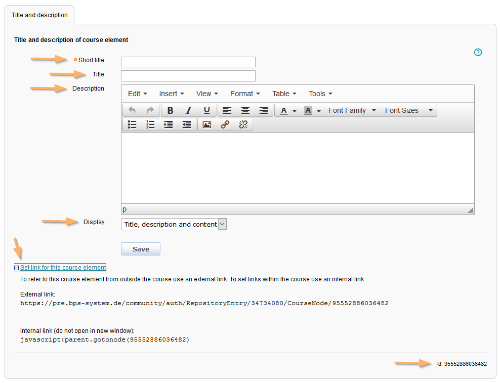
Title and description | Konfigurationsoptionen im Tab Titel und Beschreibung aufklappen ...
| ||||||||||||||
|---|---|---|---|---|---|---|---|---|---|---|---|---|---|---|---|
Visibility | You can restrict the visibility of the course element, if necessary. Further information can be found in the section Visibility. | ||||||||||||||
Access | If needed, you can also restrict the access of the course element. Further information can be found in the section Access. | ||||||||||||||
Configuration | Here you can configure the LTI tool. You can either select the LTI version and then, if applicable, a central LTI tool already stored for your institution or make your own settings to connect an individual LTI tool. Detailed instructions are given on this page Configuration. | ||||||||||||||
| Assessment | In this tab, you can make various basic configuration settings for the assessment which will affect the assessment form and the information displayed for the assessment in the course run. Find more information on this at Assessment (LTI). | ||||||||||||||
Multilingualism | You can add different translations to individual course element areas in this tab. |
In the course view
If you, as course administrator, call up the LTI tool course element in CourseRun, the LTI tool is assigned the role of ‘Instructor’ and may therefore display different content than that shown to participants.
You can test the user perspective in the learner view. Here, the role ‘Learner’ is assigned to the LTI tool for display purposes.
You can find general information about transferring data to the LTI tool on the page Data- and Parameter transfer.