

Personal calendar
 In your personal calendar, you can manage all your appointments in one place. You can create new private appointments or add course calendars. Further, it is possible to integrate external calendars via file upload (iCal format) or URL. Different colours will help you mark and differentiate calendar types.
Show personal calendar
To open your personal calendar, proceed as follows:
|
|
2. Your calendar opens in a new window. The window is structured as follows:
|
|

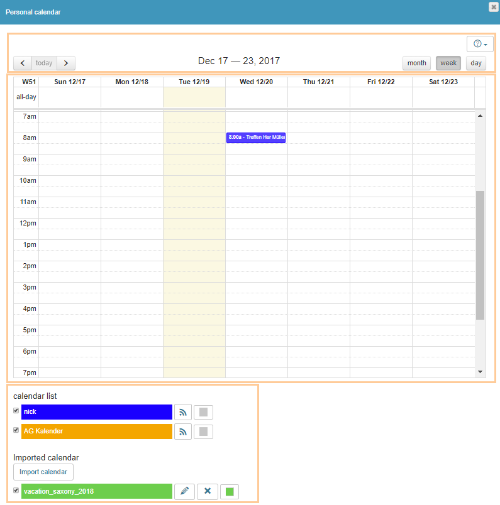
Calendar navigation
Use the navigation aid in the upper left corner of the calendar to navigate to the desired date in the selected view:
 | The navigation aid allows you to quickly navigate to the next/previous day, the next/previous week, or the next/previous month. Moreover, you can navigate to the current date with just one click.
|


To maintain a good overview of upcoming appointments, you can switch between different views. Use the buttons in the upper right corner of the calendar:
 | The monthly overview gives you an overview of the entire current month. ))) |