

Inhalte in einem Repo ansehen
Für dieses Beispiel wechselt ein Nutzer von OPAL Schule in den Bereich OPAL Community mit dem Ziel, sich eine Aufgabe aus dem Aufgabenpool Mathematik anzusehen.
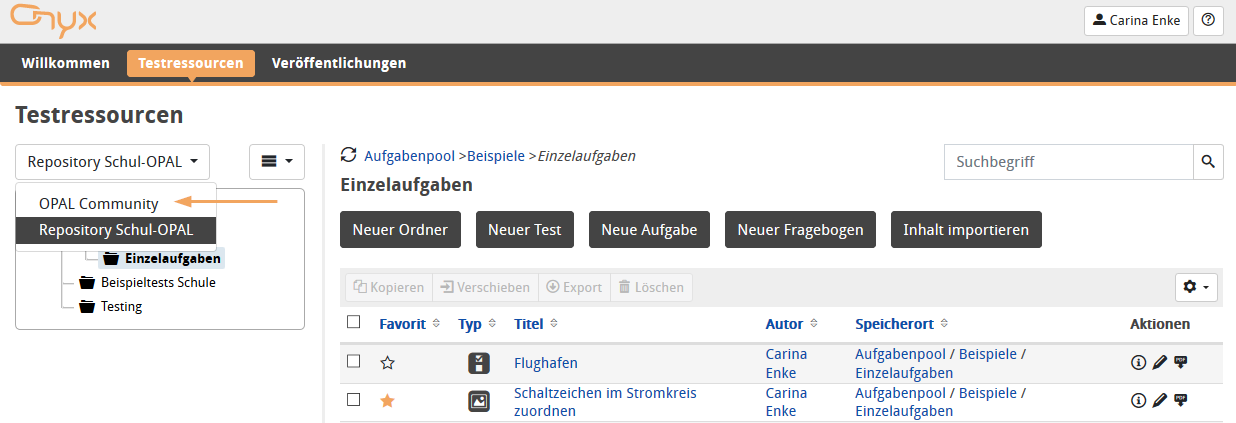
1 | Öffnen Sie die Testressourcenansicht und wechseln Sie in der linken Navigation zum Eintrag OPAL Community. |
|
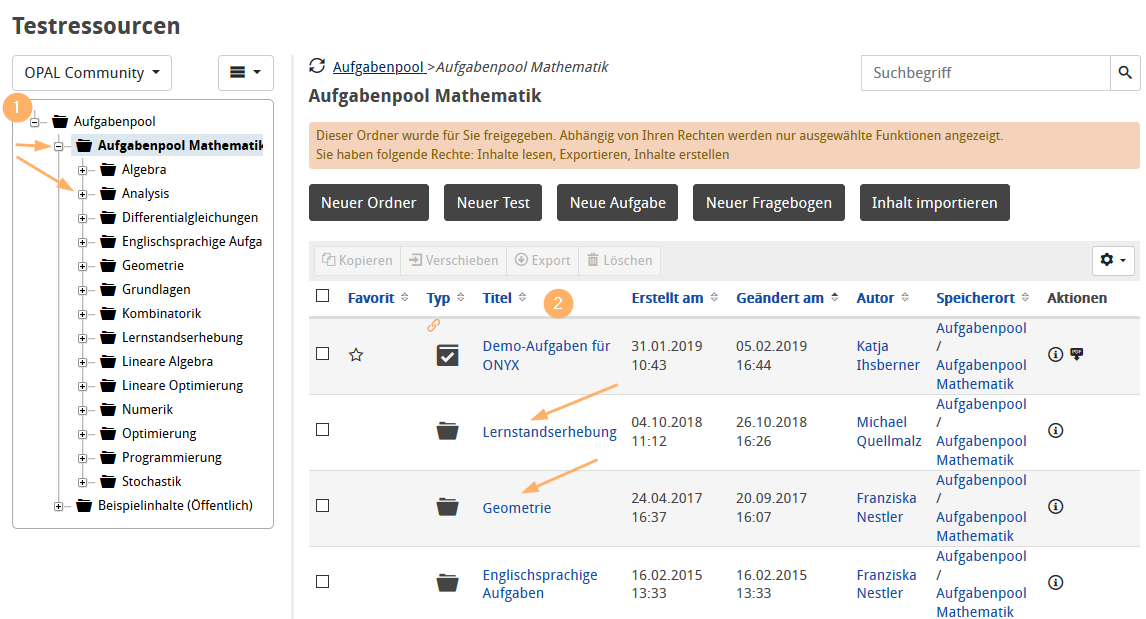
2 | Sie sehen anschließend die für Sie verfügbaren Ordner und Inhalte. |
|
3 | Zum Öffnen der Inhalte können Sie den linken Navigationsbereich (1) nutzen oder in der Tabelle direkt über entsprechende Links (2) in weiterführende Ordner wechseln. |
|
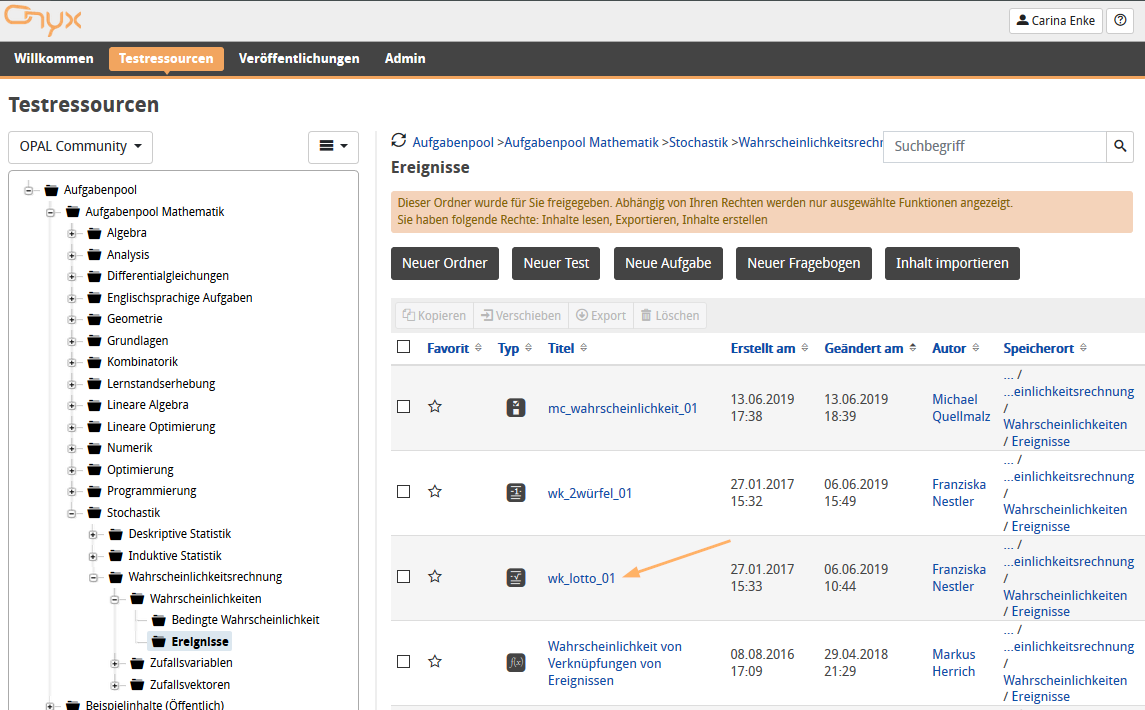
4 | Zu jedem Inhalt (Aufgabe, Test, Fragebogen) können Sie mit Klick auf den Titel die Vorschau starten und den Inhalt so ausprobieren. |
|
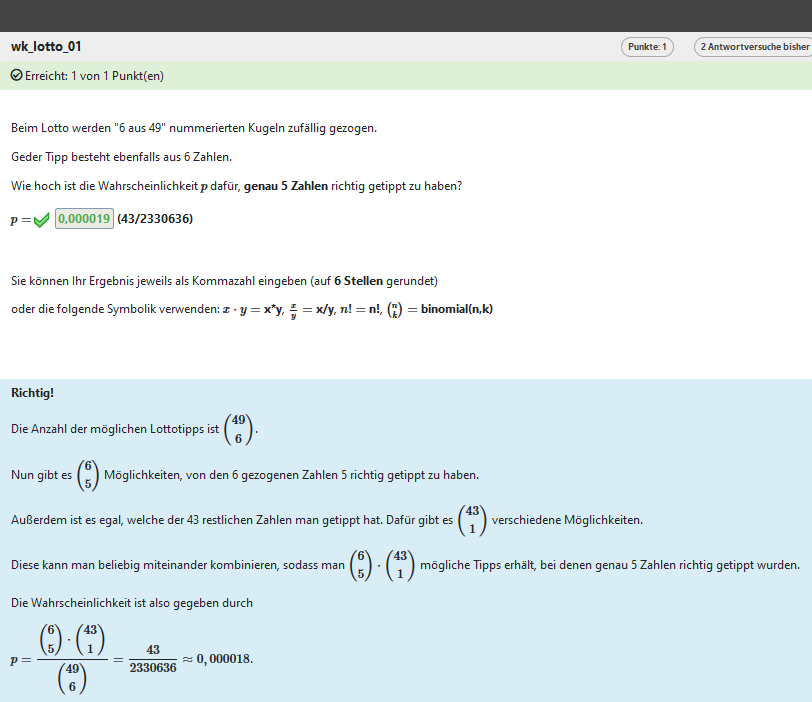
5 | Sie können die Inhalte in der Vorschau selbst beantworten und auswerten lassen. Je nach Konfiguration des Autors sehen Sie Feedback-Angaben und Hinweise zur Lösung. Je nach Inhalt werden in der Vorschau weitere technische Prüfmöglichkeiten unter der Antwort angezeigt. |
|

For this example, an OPAL School user switches to the OPAL Community area to view a question from the question bank mathematics.
1 | Open the Test resources view and navigate to the entry OPAL Community in the navigation on the left. |
|
2 | You will then see the folders and content available to you. |
|
3 | To open content, you can use the left navigation area (1) or go directly to the related folders via the corresponding links (2) in the table. |
|
4 | For each type of content (question, test, survey), you can start the preview by clicking on the title to try out the content. |
|
5 | Specifically, the preview allows you to answer questions and receive an evaluation. Depending on the configuration of the author, you will see feedback and hints on the solution. Depending on the content, the preview will show additional technical testing options below the answer. |
|