

WordPress Content in OPAL via the LTI Course Element
WordPress is a widely used content management system (CMS) that simplifies the creation and management of websites, blogs, and learning platforms. Plugins can be used to add e-learning functionality to WordPress. The LTI course element integration allows WordPress content to be embedded directly into OPAL courses.
Further information on WordPress can be found at https://wordpress.org.

The following page explains how you can display the content of WordPress pages in OPAL using an LTI course element. Here, a minimum configuration is described.
Prerequisites
- A WordPress plugin that supports LTI 1.3.
- Administrative rights in WordPress to configure OPAL as an LTI platform.
- Editor rights in OPAL for a course.
Implementation steps
- Activate and configure the relevant plugin in WordPress.
- Integrate the LTI Tool course element into the course.
- Set up OPAL as an ‘LTI Platform’ in WordPress.
- Complete the course element in OPAL by using the values from the WordPress LTI Platform.
Start the configuration as follows:
WordPress: Set up and activate a suitable LTI plugin in WordPress. Version 3.2.6 of the LTI Tool plugin by Simon Booth and Stephen P. Vickers has been successfully used to test the integration.
|  |
| Check the plugin’s default settings and adjust them if necessary. |  |
Create an entry for an LTI Platform: Click on Add New to open a dialogue box.
|  |
Fill in at least the highlighted fields here.
For the fields in the second part of the dialogue box (3), you will need further information from OPAL. |
|
OPAL:
| 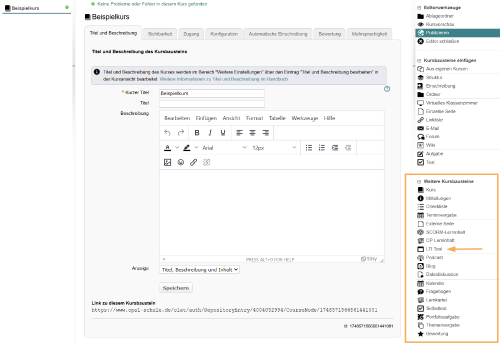 |
The information you need to complete the creation of the new LTI entry in WordPress can now be found in the section below. WordPress: You will receive a summary of the entry you have created. Here you will find the information you need to complete the setup in OPAL and finish the integration.
|
|
OPAL:
Save your configuration for the course element. You can configure further connection settings in the Parameters tab. Now publish your course. |  |
| In the course run, you should now be able to see the content of the selected WordPress site. | |

