SCORM

Last modified by Carina Enke on 16.01.2024

KB_Scorm.png SCORM learning content allows for the exchange of learning content and its reuse in various web-based environments, e.g. in authoring systems or learning platforms. SCORM stands for Sharable Content Object Reference Model. An existing SCORM 1.2 resource can be integrated into the platform either as an individual learning resource or a SCORM course element.

SCORM course elements can be assessed. This means that assessment information can be configured and, for example, be displayed in certificates or assessment overviews. Assessment information may also serve as a visibility or access criterion for other course areas.

Usage: Learners' View

Overview

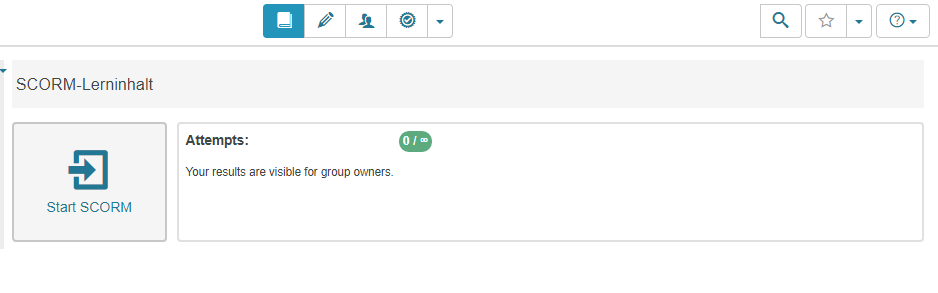
In a course element SCORM, you can start and run stored SCORM resources. You will also receive information on the number of completed attempts and the maximum number of attempts possible for the learning content.

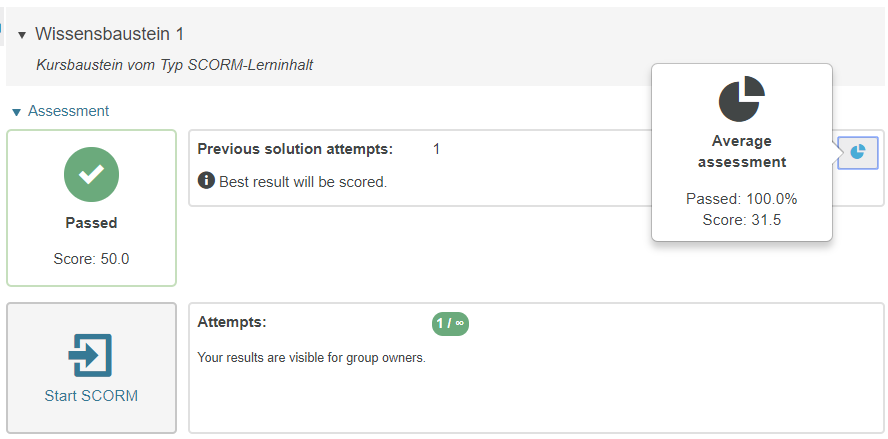
After completing a SCORM attempt, you can view your assessment above the Start SCORM button. The displayed assessment information depends on the settings configured by the course author.

Kursrun-SCORM Überblick_en.png

Functions for users

As a user, you can use the following functions in a SCORM course element:

Start SCORM

To start a SCORM, proceed as follows:  

  1. Open the course element SCORM.
  2. Click on Start SCORM.
  3. Depending on the settings configured by the course author, the SCORM will either open in the same or in a new browser window.
Warning

The SCORM can only be opened if the maximum number of possible attempts has not yet been reached.

Kursrun-SCORM starten_en.png


Close SCORM

To close a SCORM, proceed as follows:  

  1. Open the course element SCORM and start a SCORM.
  2. To close the SCORM, click on quit.
  3. Then select the X to close the window.
Information

If the SCORM was started in a new browser window, close the entire browser window after selecting quit. Then confirm the information window Close SCORM in the course with OK.

Kursrun SCORM - SCORM schließen_en.png

View assessment

The available assessment information for a course element SCORM will directly be displayed in the course area above the Start SCORM button after closing the SCORM.  

The following information may be displayed depending on the configuration by the course author:  

  • Passed status (provided the SCORM determines a passed status)
  • Score
  • Mark in numbers and words (if the course supervisor manually awards a mark)
  • Your previous solution attempts
  • Assessed attempt (Depending on the configuration, either the best result or the result for the last attempt will be displayed if more than one attempt is possible.)
  • Average assessment (Shows the average score among all users. For this information to be displayed, at least one attempt by yourself and four attempts by other registered course users will be necessary.)

Kursrun-Scorm Durchschnittliche Bewertung_en.png

Configuration: Authors' View

In the course editor

The following functions are available in the course editor:

Add a course element SCORM

Click to open instructions on how to add a course element ...


General configuration settings

In the course editor, you will find the following configuration tabs:

Title and description

Configuration options in the tab title and description ...
VisibilityIf necessary, restrict the visibility of the course element here. For more information, see the Visibility help page.
Access If necessary, restrict the visibility of the course element here. For more information, see the Access help page.

Configuration

In this tab, you can select or import a SCORM package. Additionally, you can also configure various display settings for the course element.

Detailed instructions are given in the following section Settings in the configuration tab.

Assessment

In this tab, you can configure various assessment settings. Detailed instructions are given in the following section Settings in the assessment tab.

Multilingualism

In this tab, different translations can be added to individual course element areas.

Settings in the configuration tab

In the Configuration tab, you can assign a SCORM package to your course element and specify various configuration options.  

Assign SCORM package

You can:

  • select an existing SCORM package (option 1) or  
  • import a new SCORM package (option 2)
Start the configuration for both variants as follows:

1.

Open the course element SCORM.

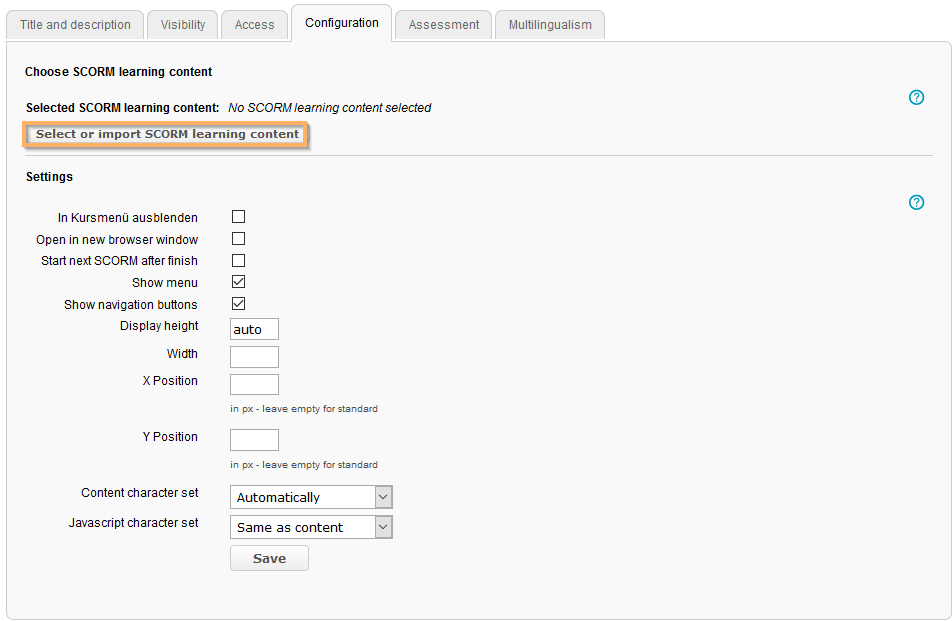
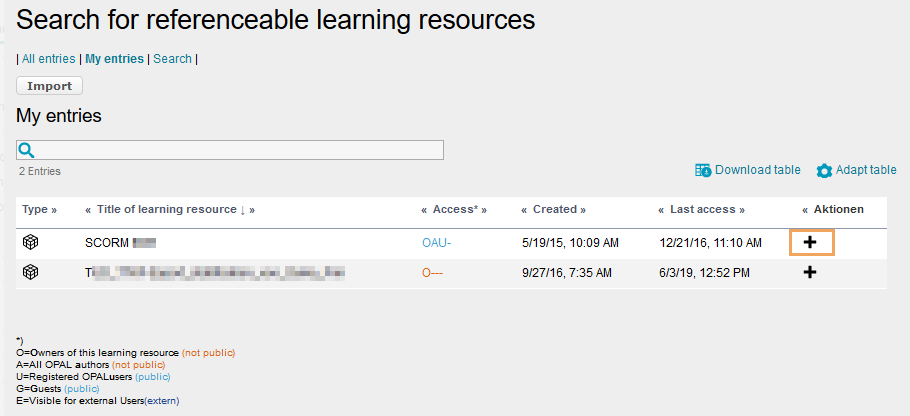
Switch to the Configuration tab in the course editor and click on Select or import SCORM learning content.

Kurseditor-SCORM wählen oder importieren_en.png

2.

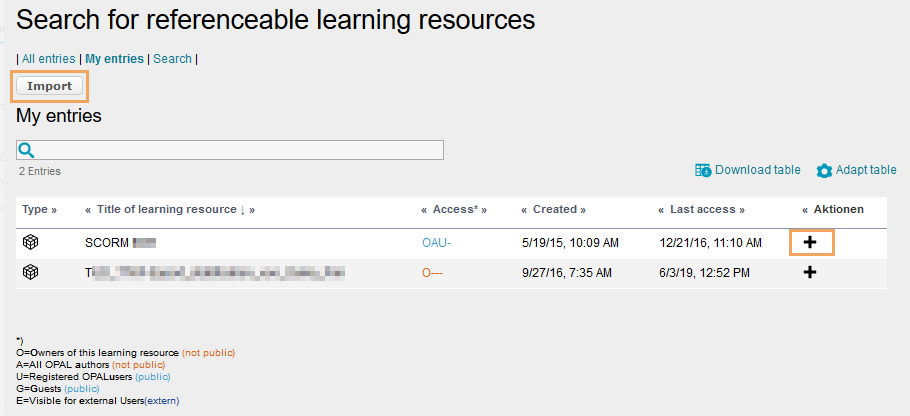
A page with the function to import a new SCORM package and a list of your existing SCORM packages will open.

Decide on one of the following options:

Kurseditor-Optionen zur Auswahl eines SCORMs_en.png

3a.

(Option 1:) To use an existing SCORM package, select the desired package by clicking on the Icon_Hinzufügen schwarz.png plus icon in the Actions column.

Kurseditor-SCORM-Paket wählen_en.png

3b.

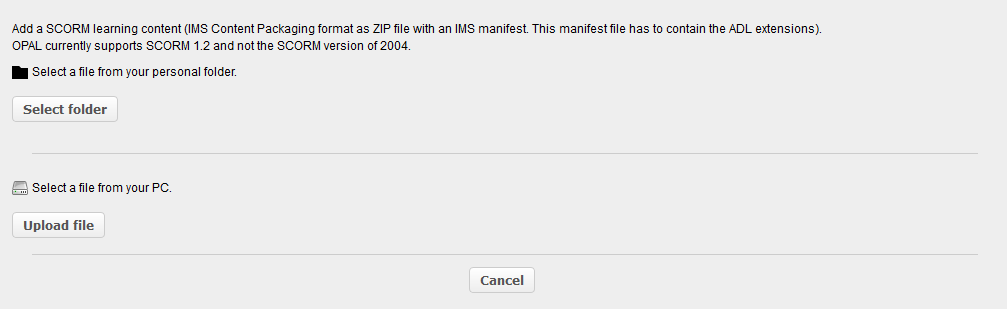
(Option 2:) To import a new SCORM package, click on Import. The system's default upload page will open.

Expand further steps ...

You have the option to import a file or a folder.

  • Select a location for the file/folder you wish to import and upload the file/folder.
  • Enter a title and optionally add a description.
  • Click on Finish to complete the creation process.

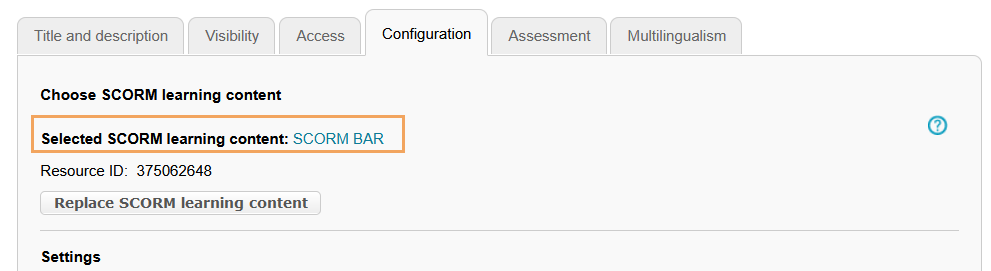
The newly imported SCORM package will now automatically be used as a resource for the SCORM course element and displayed under Selected SCORM learning content.

Kurseditor-SCORM-Paket importieren_en.png

4.


5.

The selected SCORM package will now automatically be used as a resource for the SCORM course element and displayed under Selected SCORM learning content.

Publish your course to complete the configuration and to make the SCORM package available to participants.

Kurseditor-gewähltes SCORM-Paket_en.png

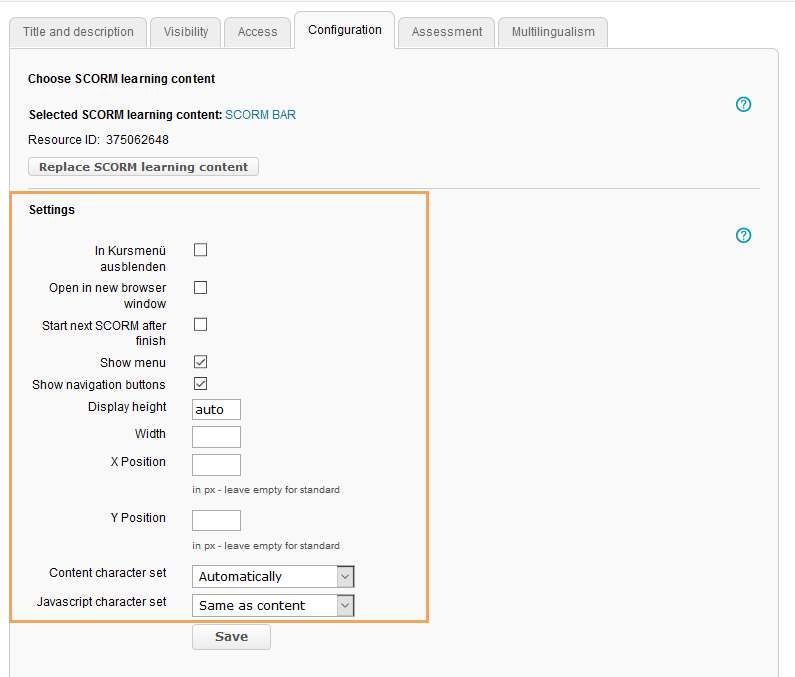
SCORM resource settings

Hide in the course menu

If this function is enabled, the course element will not be visible in the navigation on the left. The Start SCORM button can now only be accessed from the course preview or the associated structure pane.

Kurseditor-SCORM-Einstellungen_en.png

Open in new browser window

If this option is enabled, the SCORM will open in a new browser window.
As a consequence, there will, for example, be no need for size adjustments.

Start next SCORM after finish

If several SCORM elements are referenced in the main course navigation, they can be started in sequence using this setting. The user will only need to start the first SCORM.

Show menu

With this option, you can determine whether a navigation menu is to be displayed in the SCORM.

Show navigation buttons

Use this option to allow the user to navigate in the SCORM with Next and Back buttons.

Height/Width/X position/Y Position

Here you can determine the SCORM window's size and position.

Content character set

The learning platform attempts to automatically detect the SCORM's character set. If the Automatically option does not result in the desired display, you can configure the coding of the content using a predefined character set.

JavaScript character set

This option allows to encode the JavaScript code using a predefined character set (the same character set will be used by default for both content and JavaScript).

Functions after adding a SCORM resource

Once a SCORM resource has been added, you have the following options in the course editor ...

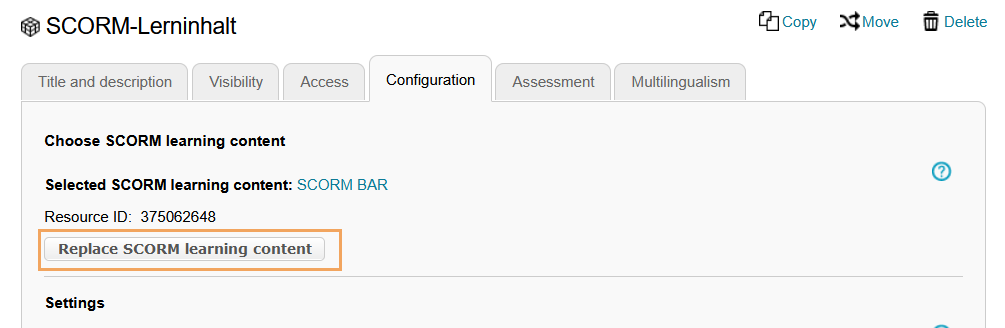
Replace SCORM learning content

Click the button to replace the added SCORM resource with another SCORM resource. The same window will open as in the upper section Assign SCORM package. Now you have the same options as described above to add a new SCORM resource.

Kurseditor-Scorm-Paket zugeordnet_en.png

Warning

A learning resource of the type SCORM is not an independent learning resource, i.e. it must be integrated into a course element SCORM. Further information on independent learning resources as well as tutorials on their creation and management are provided in the section Learning resources.


Settings in the assessment tab

In the Assessment tab, you have the option to define general assessment settings for the SCORM course element.

Configure assessment settings ...

In the course view

In the course view of a course element SCORM, you have access to all functions available to users.

Bewertungswerkzeug

Überträgt ein Scorm Punkte an OPAL können Sie detaillierte Informationen zur Bewertung und zum Verlauf im Bewertungswerkzeug einsehen. Weitere Informationen enthält der Abschnitt SCORM-Daten im Bewertungswerkzeug.