

Profile
 The Profile course element allows participants of a course to introduce themselves to other course participants by providing basic personal information. The course author can adapt and thus personalise the profile with any number of freely definable text fields.
Usage: Learners' View
Overview
If you open the Profile course element, you will see an overview of all previously created and approved profiles. The navigation bar facilitates orientation by arranging the profiles in alphabetical order. All profiles are sorted by last name. Your own profile is always the first to be displayed. If you do not yet have a profile, you will see the Create entry. |
|

Functions for users
As a user, you have access to the following functions in a Profile course element:
| Create profile | Each participant can create exactly one profile per course element. How to do that?
| ||||||
| View profile | In the Profile course element, you can view and read existing profiles. How to do that?
| ||||||
| Edit profile | You can edit and adapt your profile information as well as your profile picture at any time. How to do that?
| ||||||
| Delete profile | This option allows you to delete your profile. It will then be removed from the profile course element and can no longer be viewed by other users. How to do that?
|


Configuration: Authors' View
In the course editor
The following functions are available to you in the course editor:
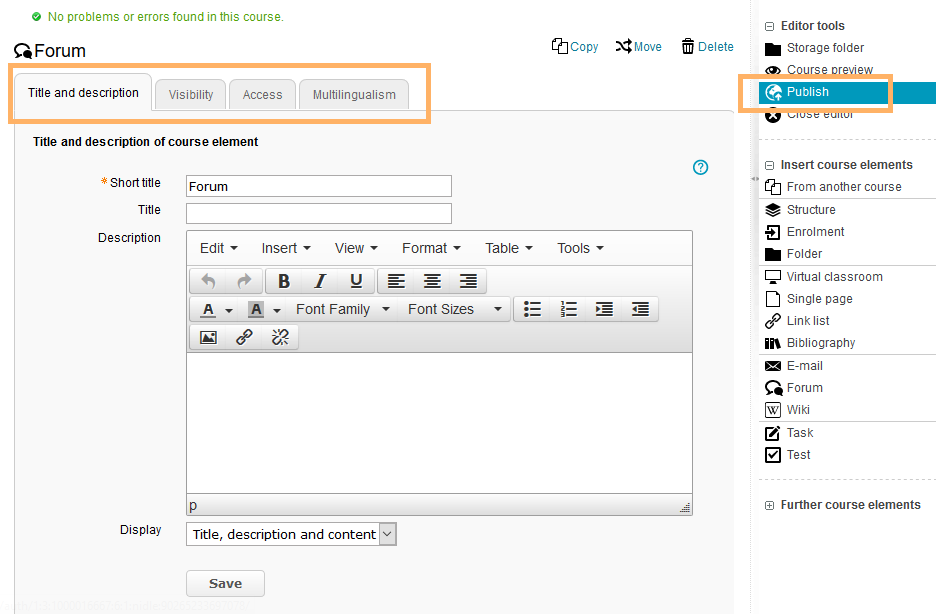
Add a profile course element | Click to open instructions on how to add a course element ...To integrate a course element into your course, proceed as follows:
| ||||||||||||||||||||||||
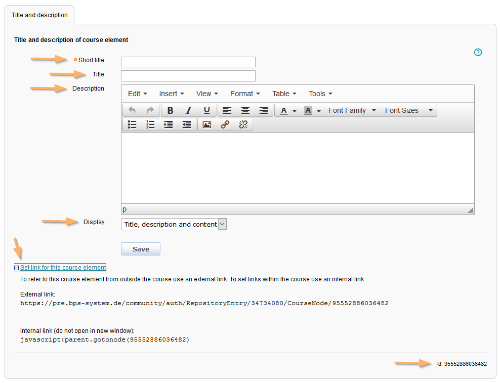
General configuration settings |
| ||||||||||||||||||||||||
Special configuration settings | To configure special settings, open the Profile course element and switch to the Configuration tab.
|



In the course view
From the course view, you can access all functions available to users. For detailed instructions on all functions, see the Functions for users section. However, in addition to their own profile, course owners can also edit and delete the profiles of all course participants.