

Installation OpenVPN BigBlueButton für Windows
Prüfen, ob die VPN-Software installiert ist
Prüfen Sie ob im Startmenü oder auf Ihrem Desktop bereits OpenVPN BigBlueButton vorhanden ist:
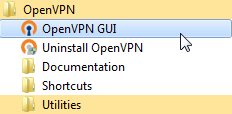 oder
oder 
Ist die VPN-Software nicht vorhanden, so führen Sie die Installationsanleitung durch.
Ist die VPN-Software vorhanden, so führen Sie die Startanleitung durch.
Installationsanleitung
In Hinblick auf Datenschutz- und Sicherheitsgründen ist es möglich, das Konferenzsystem BigBlueButton auch über eine verschlüsselte Verbindung zu nutzen.
Hierzu ist unter anderem die Installation eines OpenVPNs für das System BigBlueButton notwendig.
Zur Installation des OpenVPN BigBlueButton folgen Sie bitte den einzelnen Schritten der vorliegenden Installationsanleitung.
- Laden Sie das OpenVPN BigBlueButton Installationspaket für 32 bzw 64-bit Systeme herunter.
OpenVPN BigBlueButton Installationspaket - Der Installationsassistent öffnet sich nach einigen Sekunden automatisch. Klicken Sie im Setup-Fenster auf „Weiter“.
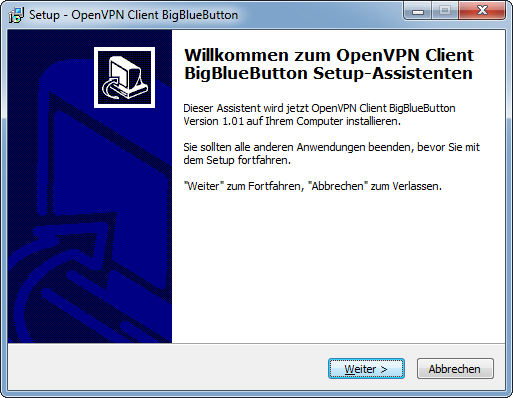
- Der Assistent fragt Sie nach einem Zielordner, in welchem OpenVPN BigBlueButton installiert werden soll.
Wir empfehlen, den vorgegebenen Zielordner nicht zu ändern. Sollten Sie dennoch einen anderen Zielordner bevorzugen, nutzen Sie
diesen gleichen Zielordner für alle weiteren Zielordner-Anfragen innerhalb dieser OpenVPN BigBlueButton Installation.
Klicken Sie anschließend auf „Weiter“.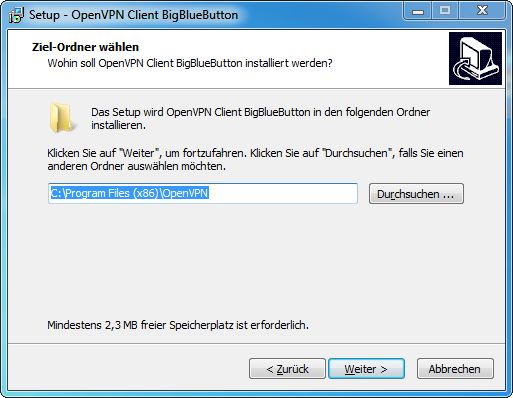
- Klicken Sie nun auf „Installieren“.
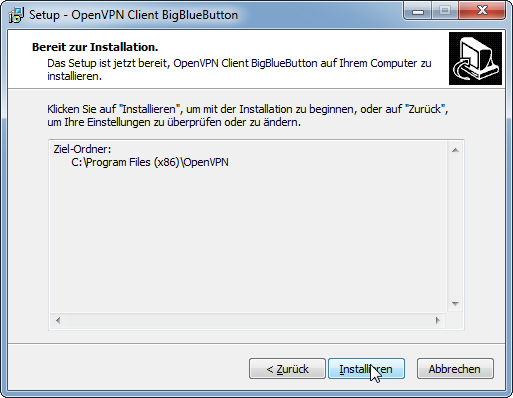
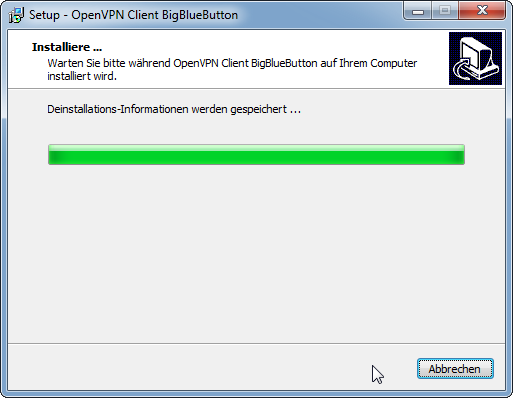
- Bitte warten Sie, während OpenVPN BigBlueButton auf Ihrem Computer installiert wird.
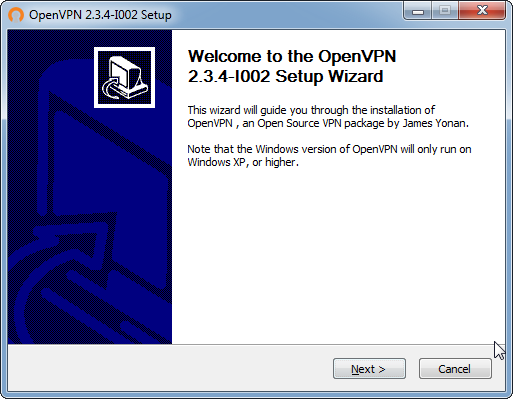
- Im nachfolgenden Fenster klicken Sie bitte auf die Schaltfläche „Next“.
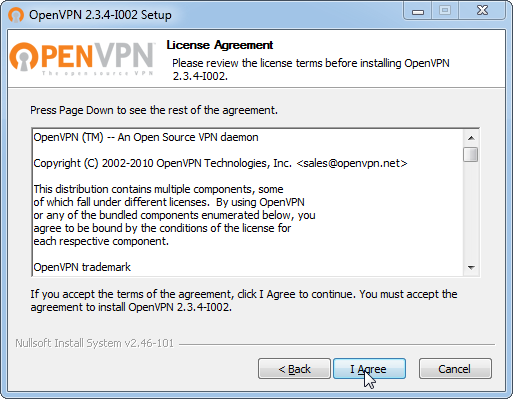
- Im nachfolgenden Fenster klicken Sie bitte auf die Schaltfläche „I Agree“, um den Nutzungsbestimmungen von OpenVPN zuzustimmen.
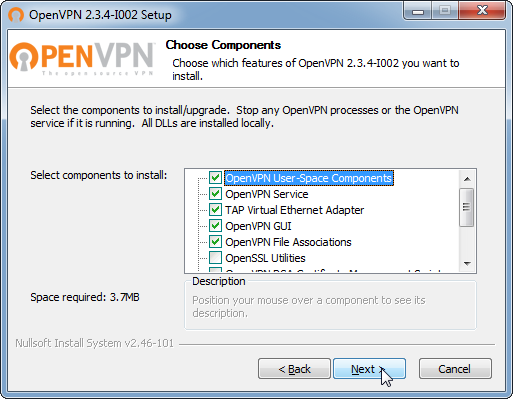
- Im nachfolgenden Fenster klicken Sie bitte auf die Schaltfläche „Next“.
- Der Assistent fragt Sie nach einem Zielordner, in welchem OpenVPN installiert werden soll. Wir empfehlen, den vorgegebenen Zielordner nicht zu ändern.
Haben Sie in einem vorhergehenden Schritt einen anderen Zielordner als den standardmäßig eingestellten Ort gewählt, geben Sie an dieser Stelle Ihren
Zielordnernamen an.
Klicken Sie anschließend auf „Weiter“.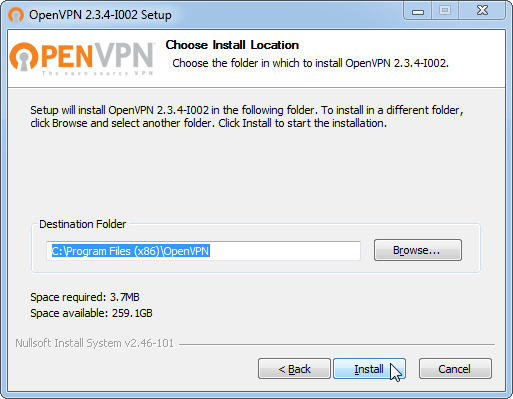
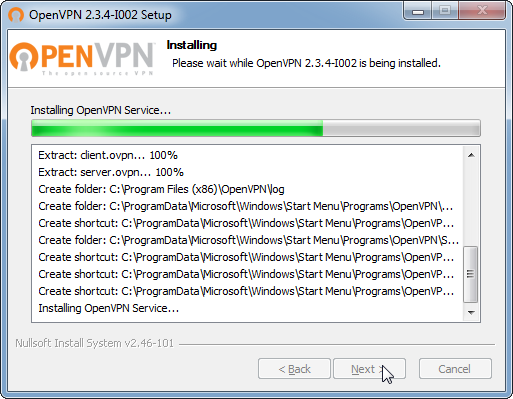
- Bitte warten Sie, während OpenVPN auf Ihrem Computer installiert wird.
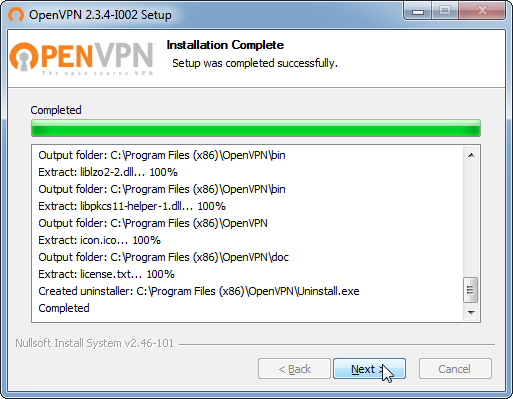
- Sobald der Installationsprozess vollständig ist, klicken Sie bitte auf „Next“.
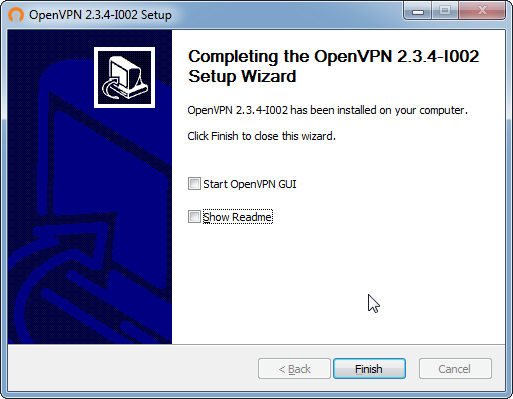
- Die Installation ist nun abgeschlossen. Klicken Sie bitte auf „Finish“.
- Zum Abschließen des Setup-Assistenten muss Ihr Computer neu gestartet werden.
Dazu wählen Sie bitte die Option „Ja, Computer jetzt neu starten“ und klicken Sie danach auf „Fertigstellen“.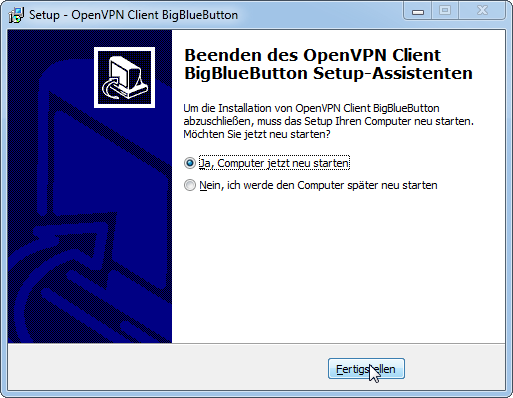
- OpenVPN BigBlueButton ist nun über Ihr Startmenü sowie einer Verknüpfung auf Ihrem Desktop erreichbar. Fahren Sie mit der Startanleitung fort.
Startanleitung
In Hinblick auf Datenschutz- und Sicherheitsgründen ist es möglich, das Konferenzsystem BigBlueButton auch über eine verschlüsselte Verbindung zu nutzen.
Wenn auf Ihrem Rechner bereits OpenVPN BigBlueButton installiert ist, müssen Sie zunächst das Programm per Mausklick starten und dann durch Eingabe Ihrer Zugangsdaten die verschlüsselte Verbindung zum BigBlueButton-Server herstellen.
Das Programm OpenVPN BigBlueButton starten Sie mit einem Mausklick entweder im Startmenu oder auf das OpenVPN-Logo auf Ihrem Desktop, sofern es sich dort befindet.
oder
Wie erkennen Sie, ob OpenVPN BigBlueButton bereits gestartet ist?
Ist OpenVPN BigBlueButton gestartet, finden Sie in der unteren Taskleiste ein kleines graues Symbol.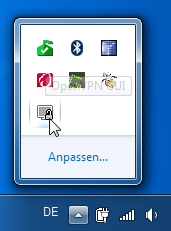
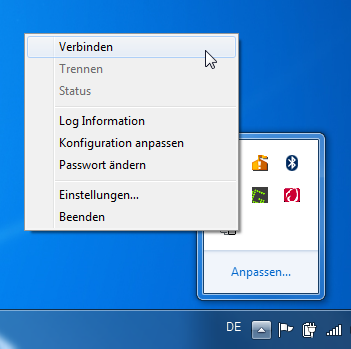
- Nach einem Rechtsklick auf das OpenVPN BigBlueButton Symbol wählen Sie "Verbinden".
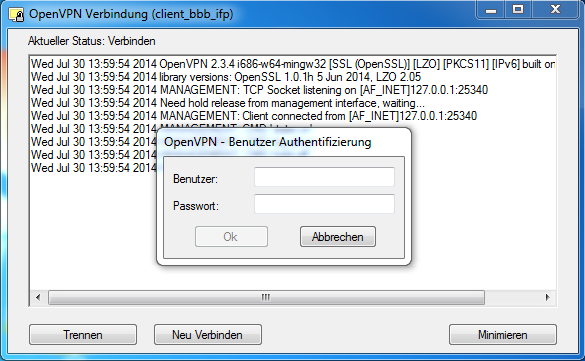
- Loggen Sie sich mit Ihrem gewohnten Benutzernamen sowie Passwort auch in OpenVPN BigBlueButton ein.
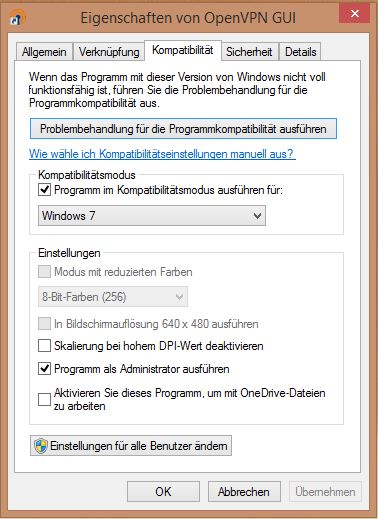
Für Nutzer des Betriebssystems Windows 8 und höher muss in den Eigenschaften des OpenVPN BigBlueButtons der Kompatibilitätsmodus geändert werden.
- Klicken Sie nach der Installation mit der rechten Maustaste auf das OpenVPN BigBlueButton Start-Icon und wählen Sie die Option "Eigenschaften".
- Im Tab "Kompatibilität" setzen Sie ein Häkchen im Feld "Programm im Kompatibilitätsmodus ausführen für"
- Wählen Sie in der darunterstehenden Drop-Down-Liste "Windows 7".
Bei Fragen zur Installation des OpenVPN BigBlueButton wenden Sie sich bitte an Ihren Systemadministrator.
Check whether the VPN software is installed
Check whether OpenVPN BigBlueButton is already present in the start menu or on your desktop:
or
Is the VPN software not present, follow the installation instructions.
Is the VPN software present, follow the start instructions.
Installation instructions
For data protection and security reasons, it is also possible to use the conference system BigBlueButton via an encrypted connection. For this purpose, the system BigBlueButton requires, amongst other things, an OpenVPN.
To install the OpenVPN BigBlueButton, follow the individual steps of the present installation instruction.
- Download the OpenVPN BigBlueButton installation package for 32 or 64-bit systems.
- The installation wizard will automatically open after a few seconds. In the setup window, click on "Next".
- The wizard will ask you for a destination folder in which OpenVPN BigBlueButton is to be installed.
We recommend not to change the default destination folder. If you nevertheless prefer a different destination folder, use the same destination folder for all other destination folder requests during this OpenVPN BigBlueButton installation.
Then, click on "Next".
- Click on "Install".
- Please wait until the installation of OpenVPN BigBlueButton is complete.
- In the following window, click on "Next".
- In the following window, click on "I Agree" to agree to the terms of use of OpenVPN.
In the following window, click on "Next".
- The wizard will ask you for a destination folder in which OpenVPN is to be installed. We recommend not to change the default destination folder.
If you have selected a destination folder other than the default location in a previous step, enter your destination folder name at this point.
Then, click on "Next".
- Please wait until the installation of OpenVPN is complete.
- Once the installation process is complete, click on "Next".
- The installation is now complete. Click on "Finish".
To complete the setup wizard, restart your computer. Simply select the option "Yes, restart computer now" and click on "Complete".
OpenVPN BigBlueButton is now accessible via your start menu as well as via a shortcut on your desktop. Proceed with the start instructions.
Start instructions
-
- ==
For data protection and security reasons, it is also possible to use the conference system BigBlueButton via an encrypted connection.
If OpenVPN BigBlueButton is already installed on your computer, you need to start the program first by clicking on it and then establish the encrypted connection to the BigBlueButton server by entering your access data.
You can start the program OpenVPN BigBlueButton either by clicking on it in the start menu or by clicking on the OpenVPN logo on your desktop, provided the logo is displayed there.
or
How do you know whether OpenVPN BigBlueButton is already running?
If OpenVPN BigBlueButton is running on your computer, you will find a small grey symbol in the bottom task bar.
- Right-click the OpenVPN BigBlueButton symbol and select "Connect".
- Log in to OpenVPN BigBlueButton using your usual user name and password.
Users of the operating system Windows 8 or higher need to change the compatibility mode in the properties of OpenVPN BigBlueButton.
- After the installation, right-click on the OpenVPN BigBlueButton start icon and select the option "Properties".
- In the tab "Compatibility", activate the checkbox "Run this program in compatibility mode for".
- Select "Windows 7" from the drop-down list below the checkbox.
If you have any questions regarding the installation of OpenVPN BigBlueButton, please contact your system administrator.