BigBlueButton
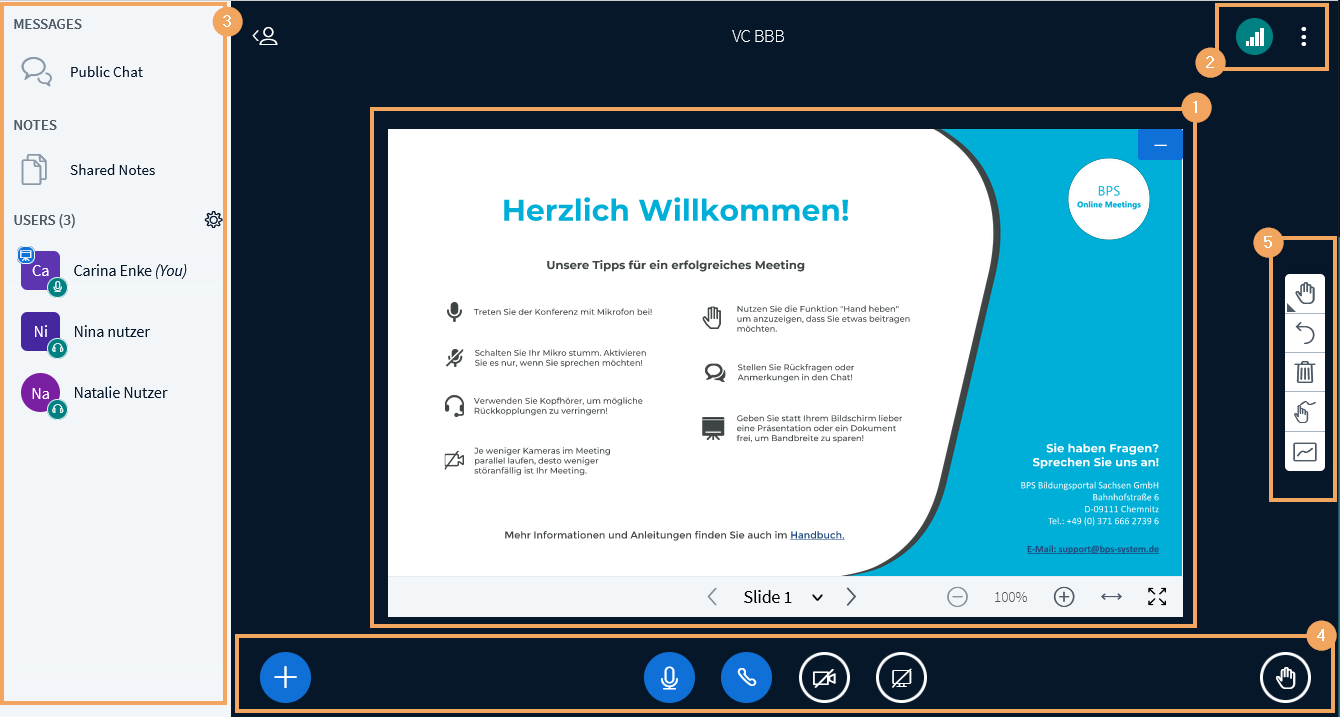
After the virtual classroom has been opened, BigBlueButton provides the following functions:
1 | In the middle of the page is the presentation interface. On all sides of this interface, you will find all available functions and setting options (2-5). |
| ||||
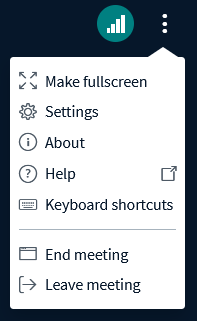
2 | At the top right, you can change basic settings or log out at the end of the session. |
| ||||
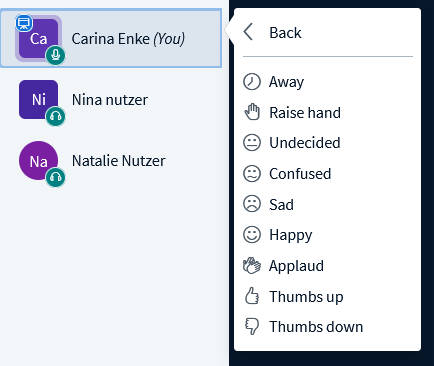
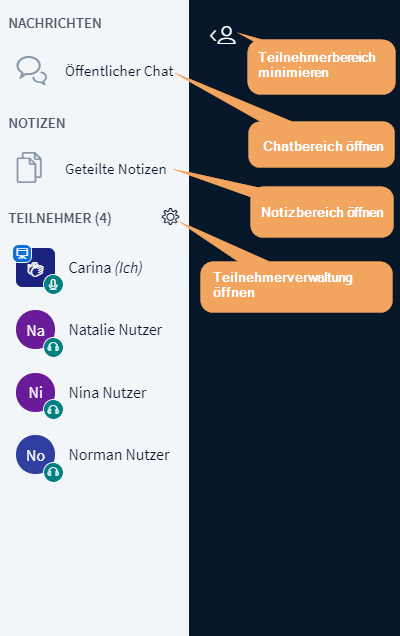
3 | On the left, you will find the list of participants as well as access to chat options (public chat with all participants, private chat with individual participants). The list of participants can be extended or minimised using the appropriate icon
|
| ||||
4 | At the bottom of the page, you can start or stop audio and video functions, as well as upload and share files for presentation if you have presentation rights. To share your screen, use the last icon |
| ||||
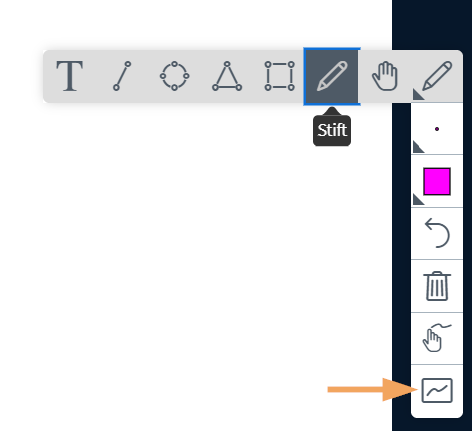
5 | On the right, the presenter sees tools they may use to accompany their lecture. Depending on the tool you choose, further selections change accordingly. The last icon in the toolbar is for starting the multi-user mode. This mode allows participants to actively participate in the presentation and to add notes or markings themselves. |
|
 .
.
 .
.