

BigBlueButton
Sie benötigen ein einfaches Dokument um die Funktionsweise zu verteilen? Für Sie vorbereitet haben wir .
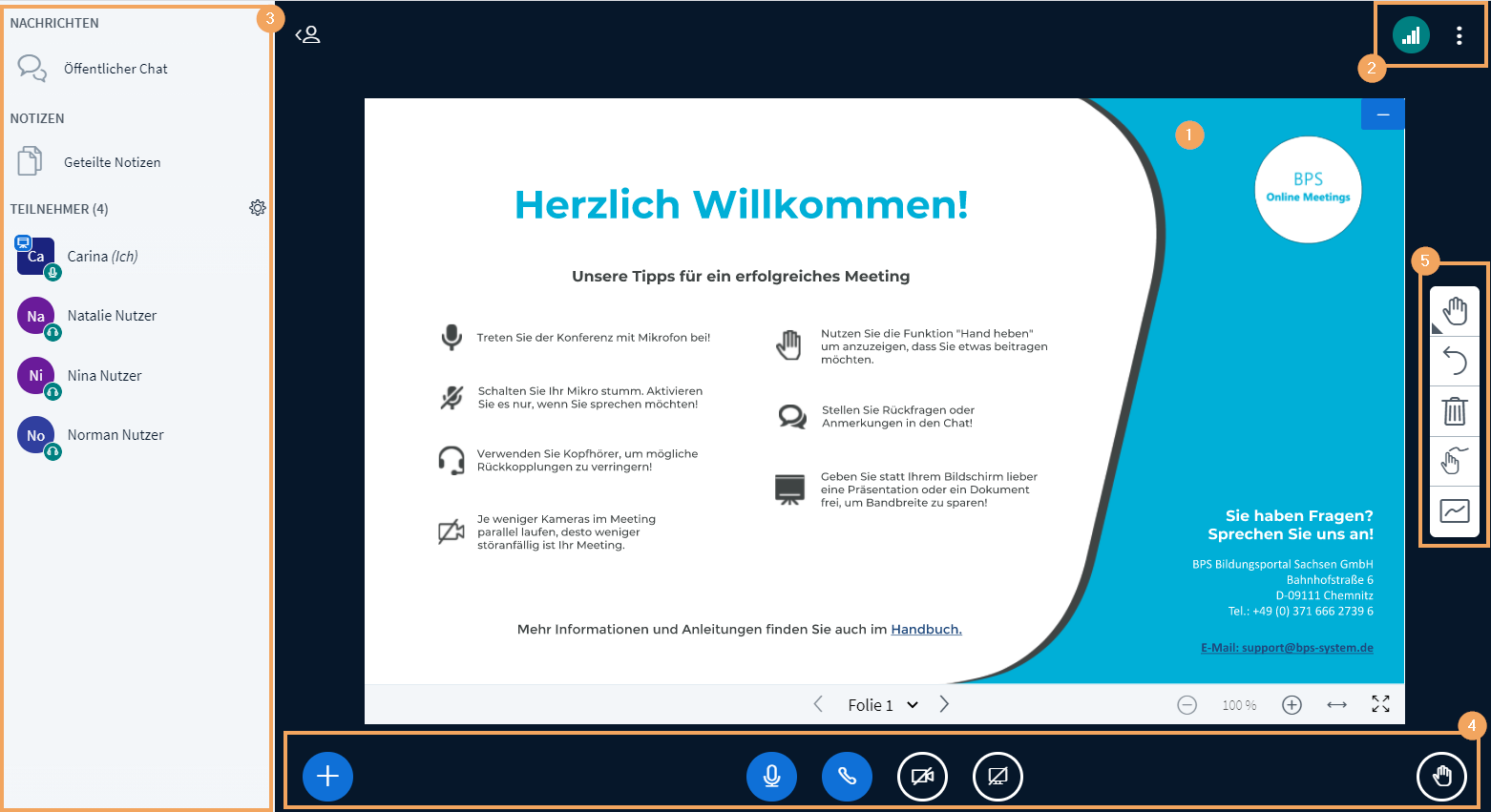
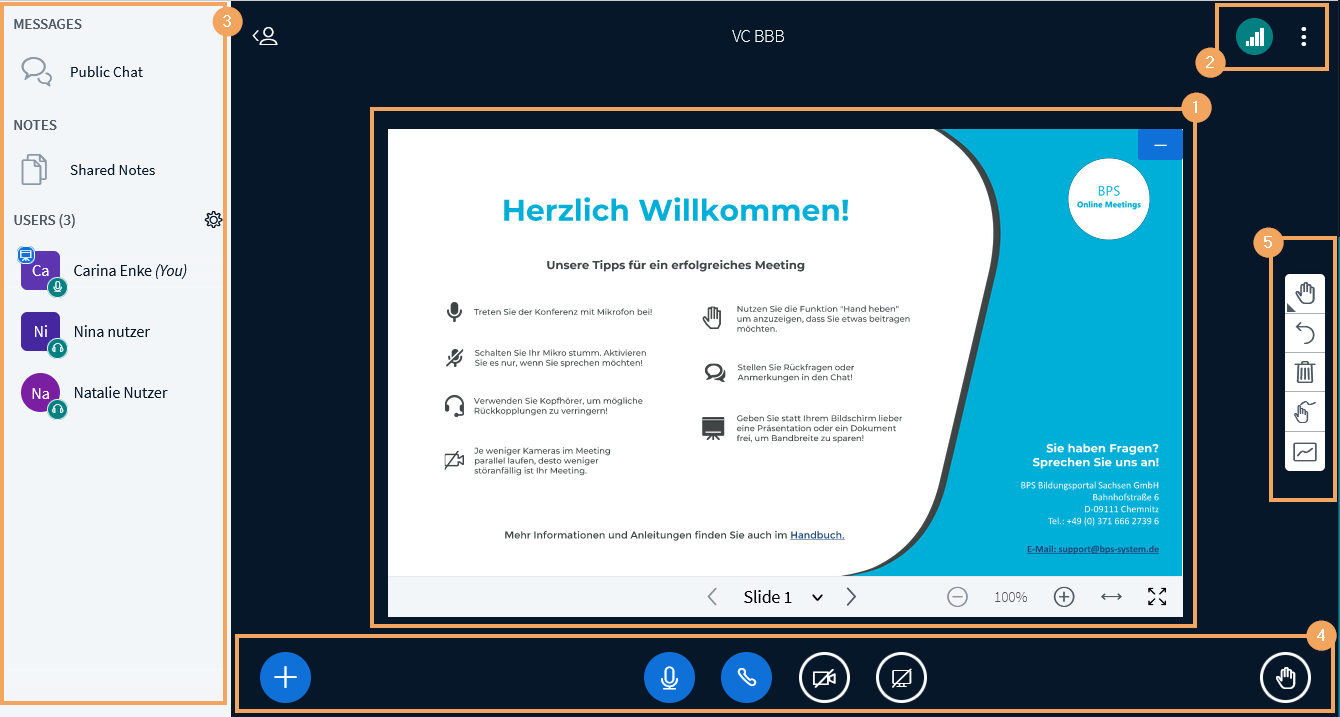
Nach dem Öffnen des virtuellen Klassenzimmers stellt das Konferenzsystem BigBlueButton folgende Funktionen bereit:
1 | Im mittleren Seitenbereich befindet sich der Whiteboard- und Präsentationsbereich. Um diesen zentrieren sich alle verfügbaren Funktionen und Einstellungsoptionen (2-5). |
| ||||
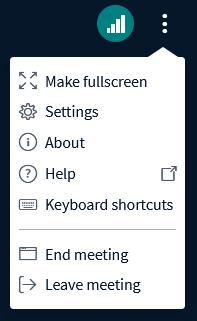
2 | Oben rechts neben dem Icon für den Verbindungsstatus |
| ||||
3 | Im linken Seitenbereich sehen Sie die Teilnehmerliste sowie den Zugang zu
|
| ||||
4 | Im unteren Seitenbereich können Sie Audio- und Videofunktionen oder Bildschirmfreigaben starten bzw. beenden sowie Dateien zur Präsentation hochladen und freigeben. Weitere Funktionen wie beispielweise Umfragen starten Sie über den |
| ||||
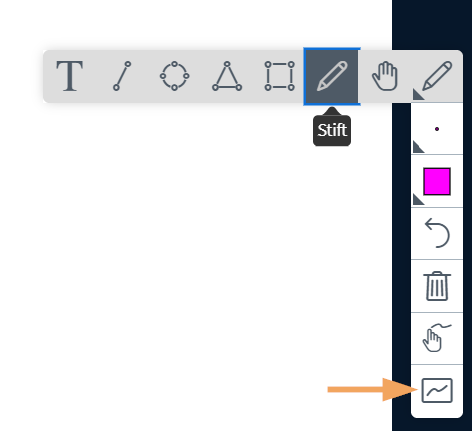
5 | Im rechten Seitenbereich sehen Personen mit Whiteboard- oder Präsentationsrechten verfügbare Werkzeuge für den Whiteboardbereich. Je nach gewähltem Werkzeug ändert sich die weitere Auswahl. Mit dem letzten Icon in der Werkzeugleiste wird der Mehrbenutzermodus für alle Teilnehmenden gestartet. Damit können sich alle aktiv an der Präsentation beteiligen und selbst Anmerkungen oder Markierungen hinzufügen. |
|
 können Sie durch Klick auf das Icon
  Grundeinstellungen ändern oder sich am Ende des Meetings ausloggen.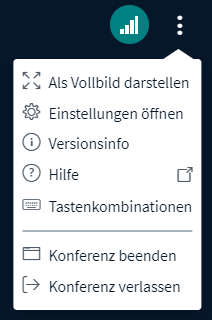
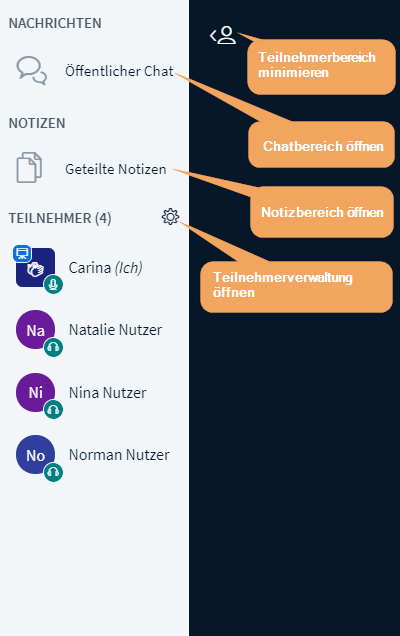
 Chatmöglichkeiten (öffentlicher Chat mit allen Teilnehmern, privater Chat mit einzelnen Teilnehmern) und einen gemeinsam nutzbaren
  Notizbereich. Die Teilnehmerliste kann über das zugehörige Icon
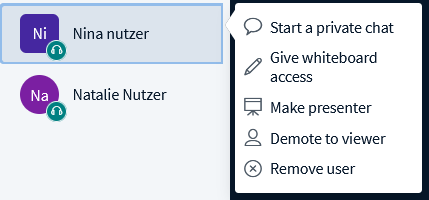
  erweitert oder minimiert werden. Die Teilnehmerverwaltung öffnet sich mit dem
  Rädchen-Icon.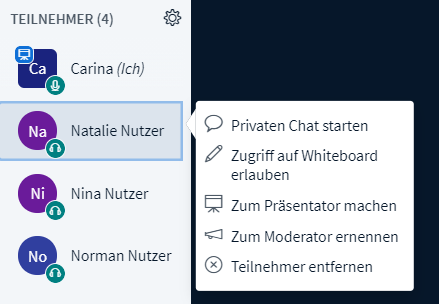
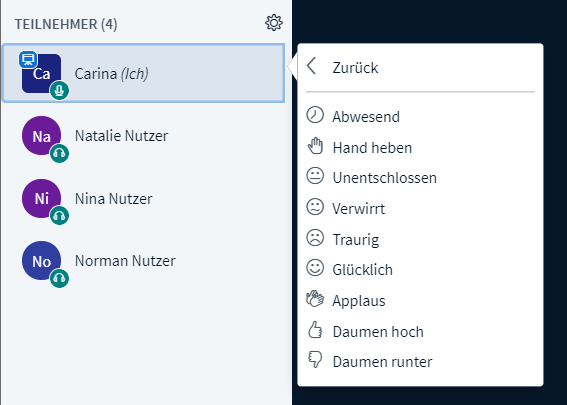
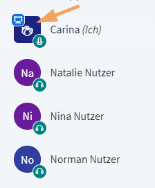
 Aktionsbereich.
After the virtual classroom has been opened, BigBlueButton provides the following functions:
1 | In the middle of the page is the presentation interface. On all sides of this interface, you will find all available functions and setting options (2-5). |
| ||||
2 | At the top right, you can change basic settings or log out at the end of the session. |
| ||||
3 | On the left, you will find the list of participants as well as access to chat options (public chat with all participants, private chat with individual participants). The list of participants can be extended or minimised using the appropriate icon
|
| ||||
4 | At the bottom of the page, you can start or stop audio and video functions, as well as upload and share files for presentation if you have presentation rights. To share your screen, use the last icon |
| ||||
5 | On the right, the presenter sees tools they may use to accompany their lecture. Depending on the tool you choose, further selections change accordingly. The last icon in the toolbar is for starting the multi-user mode. This mode allows participants to actively participate in the presentation and to add notes or markings themselves. |
|
 .
.
 .
.