

References
The References section lists all existing links for a resource. They can be linked to courses in the connected OPAL learning platform or to other resources within the question bank.
View references
You can recognize any references to a piece of content in the table view of the question bank by a bracket icon next to the resource  .
.

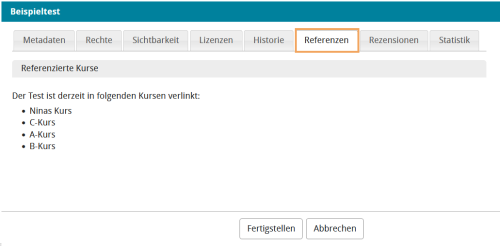
To open the reference management area, click on the cog icon in the Question Bank table and switch to the References tab in the dialogue box.
- The Referenced Courses section lists all courses on the connected OPAL learning platform in which the test or questionnaire is already being used. These references cannot be set or removed in the question bank.
- The Existing References section displays all other existing links within the question bank. The Existing References section displays all other existing links within the question bank. You can add and remove these links in the question bank. This is a great way to organize variants or language translations, for example.
All users who have at least reading access to a resource can view references. Content release is controlled via rights assignment and management.
Create references
To create a new link between resources, click on the Add button in the open References tab. A search field opens in which you can search for content to link by title. Select your relevant resources in the results list. Now, create the link by clicking on the Create Reference button.

The selected reference is then displayed and is also available in the other list views if required, provided that the corresponding column has been configured for display.

Remove References
Instructions on how to remove OPAL references can be found on the OPAL help page Test.
If you want to remove a link to other content in the question bank, proceed as follows:
- Select the checkbox in front of the entries whose references are to be removed.
- Then click on Remove, and the shortcut will be deleted immediately.
