

Group management in the course
 Within a course, learning groups are summarised in the group management area. This area provides central functions to manage and communicate with group members.
Open group management area
To open the Groups in the course area in the editing mode, proceed as follows:
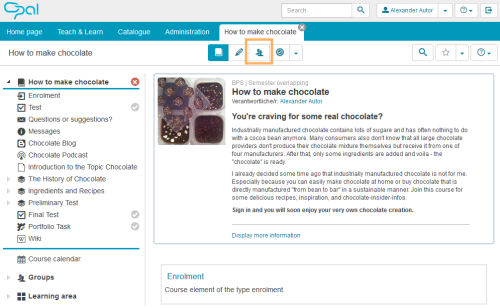
Click on the Group management icon in the middle of the opened course page. |
|
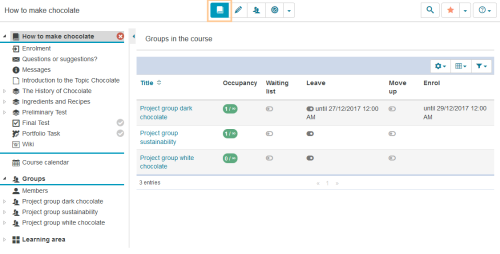
The Groups in the course overview opens. In the left course navigation, the Groups area is expanded and highlighted in colour. The course navigation, in contrast, is displayed as inactive. The group overview in the middle area of the screen shows all learning groups of the course accessible to you. If there are no groups available to you in the course, an empty table will open. If there are already groups in the course, they will be listed in the table. |
|
To leave the group management area, select the Course icon in the middle of the page. You will then return to the simple group view in the course.As a result, the colour marking in the navigation pane is removed, and the left course navigation is reactivated. The group list is displayed in the simple view without function buttons. |
|

Function overview in the group management
In addition to the basic table configuration functions, you can perform more specific group actions in the Group management area. You can choose from individual buttons in the header area of the list and the Actions column.

Functions available in the header area of the list:
| Use this button to create and configure a new learning group in the course. | |
| Learning groups can be organised into learning areas. To create a new learning area, use this button. | |
| Copy | Learning groups can be copied. This function is available if you select the checkbox in front of at least one learning group. |
| This button provides quick access to the email functionality. It is also only available if at least one group has been selected. You can use this function to send messages to individual users as well as all learning group participants and supervisors. | |
| List of participants | |
| Reset | If courses span several semesters or years, it is necessary to remove participants from groups or transfer them to other groups to archive them. You can perform these tasks collectively via this function. |
| Delete | To delete a learning group, select the checkbox in front of the desired group and click on Delete. |
Advanced | Additional functions are available via this selection list:
| |
| Select the columns to be displayed in the table
| |
|
| |
| Unknown macro: includeplus. Click on this message for details. | |



Functions in the table rows
| Edit | Click on this button to switch directly to the editing view of the selected group. |
| Manage members | Click on one of these buttons to switch directly to the member area of the selected group, where you can add or remove participants. |
e. g. | Number of places |


