

SCORM
 SCORM learning content allows for the exchange of learning content and its reuse in various web-based environments, e.g. in authoring systems or learning platforms. SCORM stands for Sharable Content Object Reference Model. An existing SCORM 1.2 resource can be integrated into the platform either as an individual learning resource or a SCORM course element.
SCORM course elements can be assessed. This means that assessment information can be configured and, for example, be displayed in certificates or assessment overviews. Assessment information may also serve as a visibility or access criterion for other course areas.
Usage: Learners' View
Overview
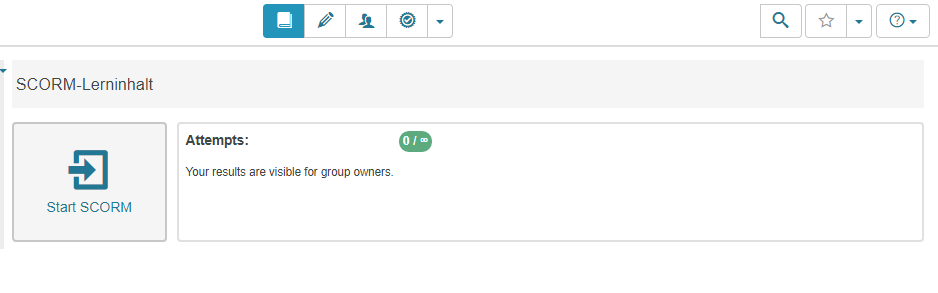
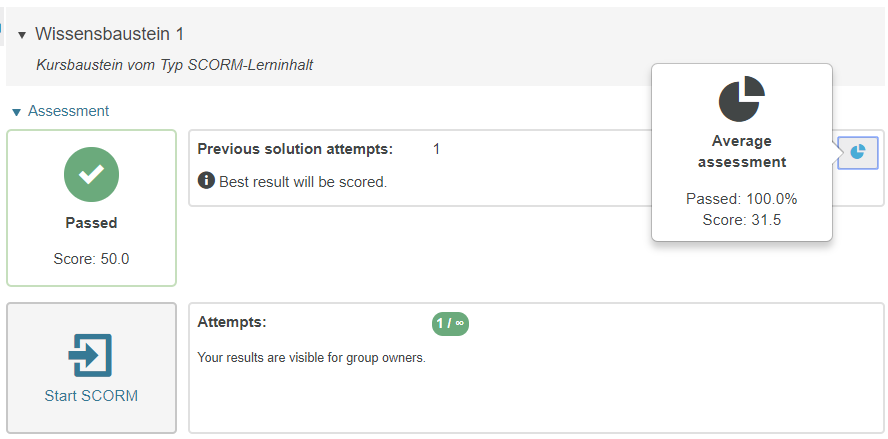
In a course element SCORM, you can start and run stored SCORM resources. You will also receive information on the number of completed attempts and the maximum number of attempts possible for the learning content. After completing a SCORM attempt, you can view your assessment above the Start SCORM button. The displayed assessment information depends on the settings configured by the course author. |
|
Functions for users
As a user, you can use the following functions in a SCORM course element:
Start SCORM | To start a SCORM, proceed as follows:
| ||
Close SCORM | To close a SCORM, proceed as follows:
| ||
View assessment | The available assessment information for a course element SCORM will directly be displayed in the course area above the Start SCORM button after closing the SCORM.
|


Configuration: Authors' View
In the course editor
The following functions are available in the course editor:
Add a course element SCORM | Click to open instructions on how to add a course element ...To integrate a course element into your course, proceed as follows:
| ||||||||||||||||||||||||||||||||||||||||
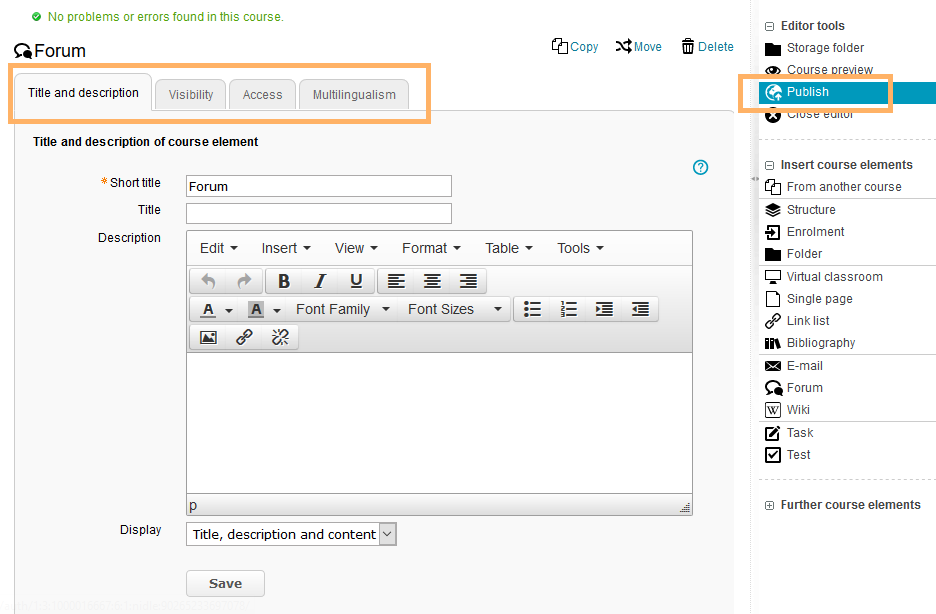
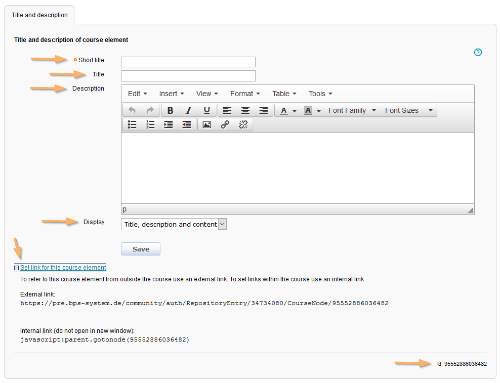
General configuration settings | In the course editor, you will find the following configuration tabs:
| ||||||||||||||||||||||||||||||||||||||||
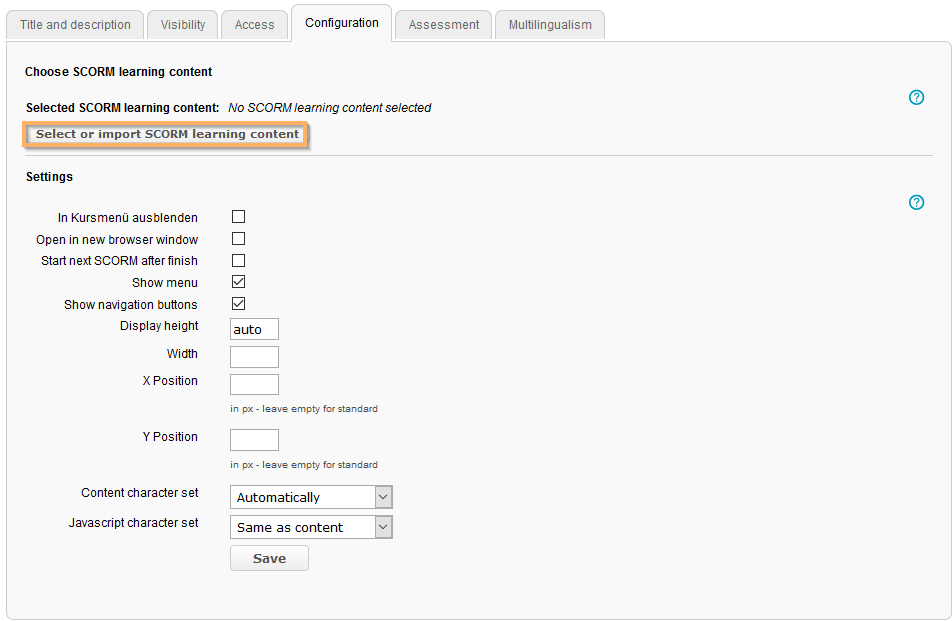
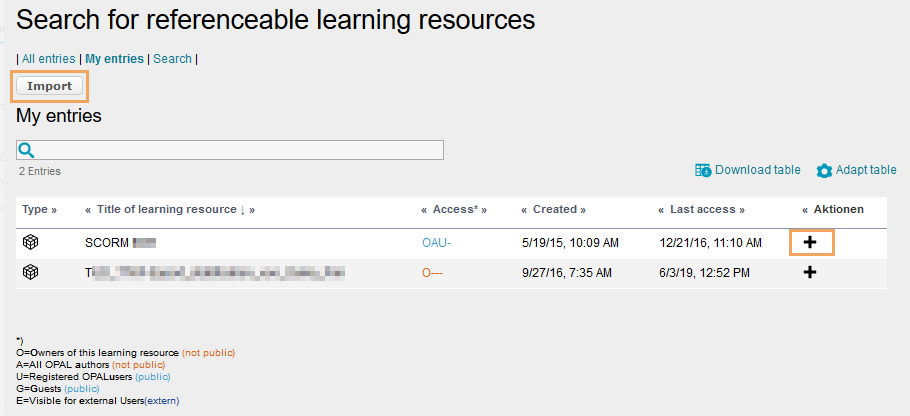
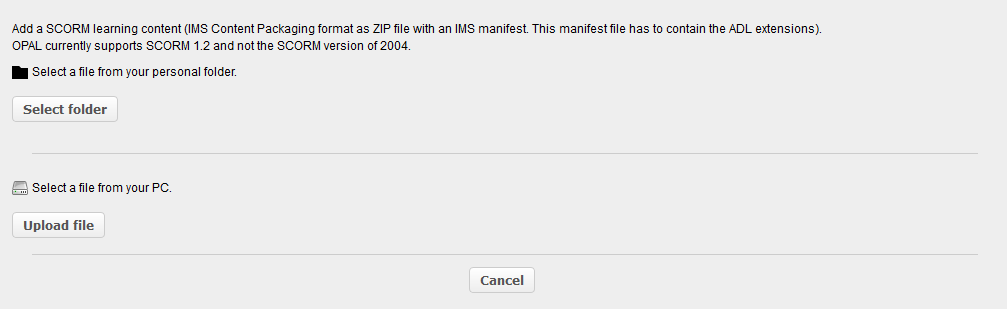
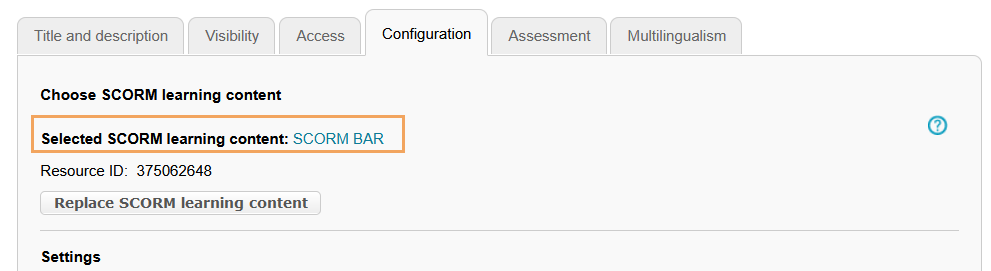
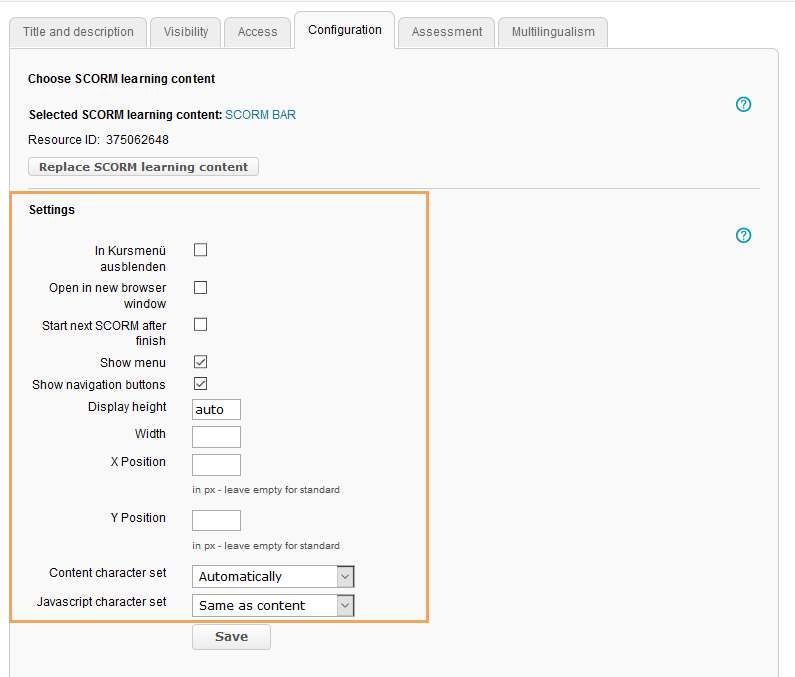
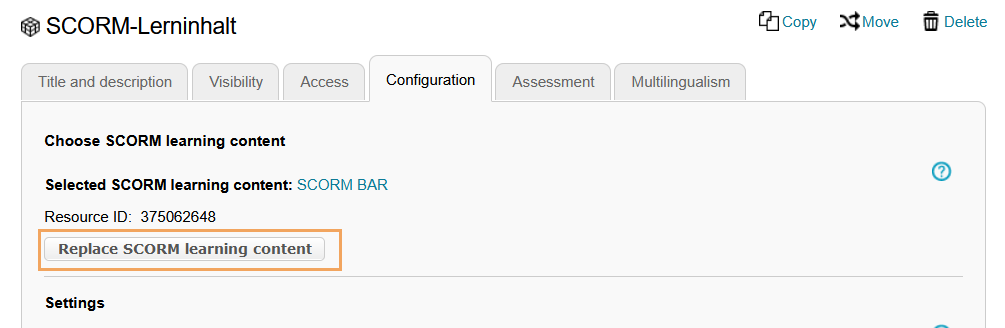
Settings in the configuration tab | In the Configuration tab, you can assign a SCORM package to your course element and specify various configuration options.
| ||||||||||||||||||||||||||||||||||||||||
Settings in the assessment tab | In the Assessment tab, you have the option to define general assessment settings for the SCORM course element. |



In the course view
In the course view of a course element SCORM, you have access to all functions available to users.
Bewertungswerkzeug | Überträgt ein Scorm Punkte an OPAL können Sie detaillierte Informationen zur Bewertung und zum Verlauf im Bewertungswerkzeug einsehen. Weitere Informationen enthält der Abschnitt SCORM-Daten im Bewertungswerkzeug. |
|---|