Warnung
Aus Sicherheitsgründen wird das Dokument in einem eingeschränkten Modus angezeigt, da es sich nicht um die aktuelle Version handelt. Dadurch kann es zu Abweichungen und Fehlern kommen.
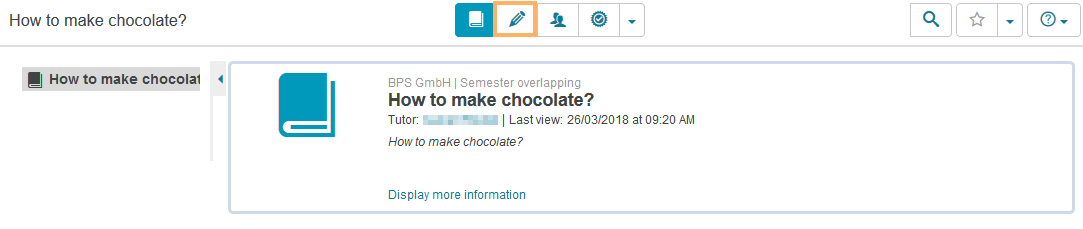
| Öffnen Sie den Kurs, den Sie bearbeiten möchten, in der Kursansicht. | |
| Um in den Editiermodus zu wechseln, klicken Sie das  Stift-Symbol im oberen Bereich des Kurses. Stift-Symbol im oberen Bereich des Kurses. |
| |
Im Kurseditor stehen Ihnen verschiedene Tabs zur Verfügung, um den Kurshauptknoten zu konfigurieren:
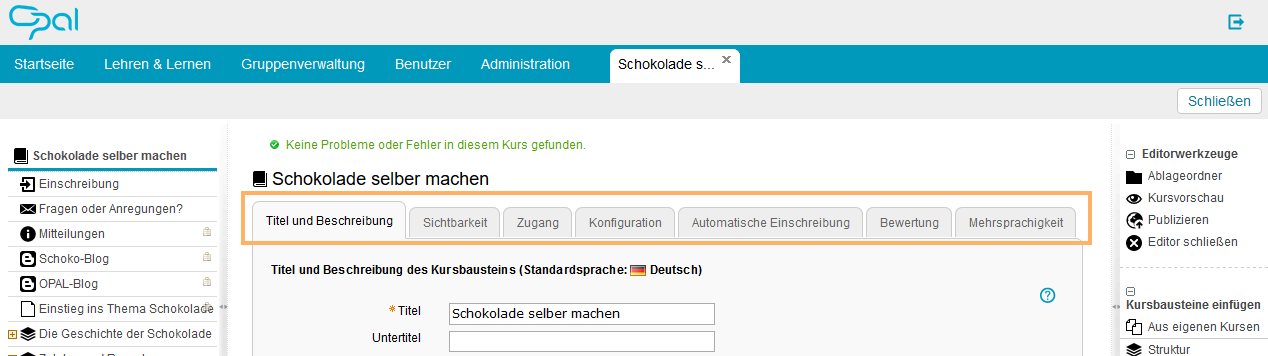
| |
|---|
| |
|---|
|
|---|
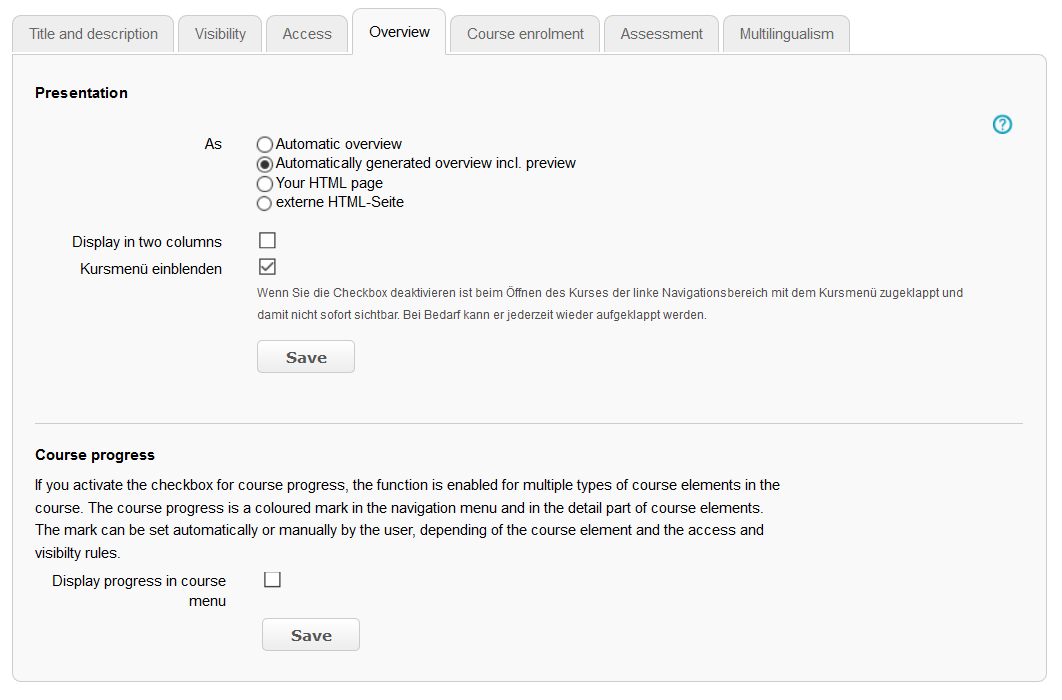
| In diesem Tab können Sie die Darstellung der Übersichtsseite zum Kurs anpassen und den Kursfortschritt freischalten. 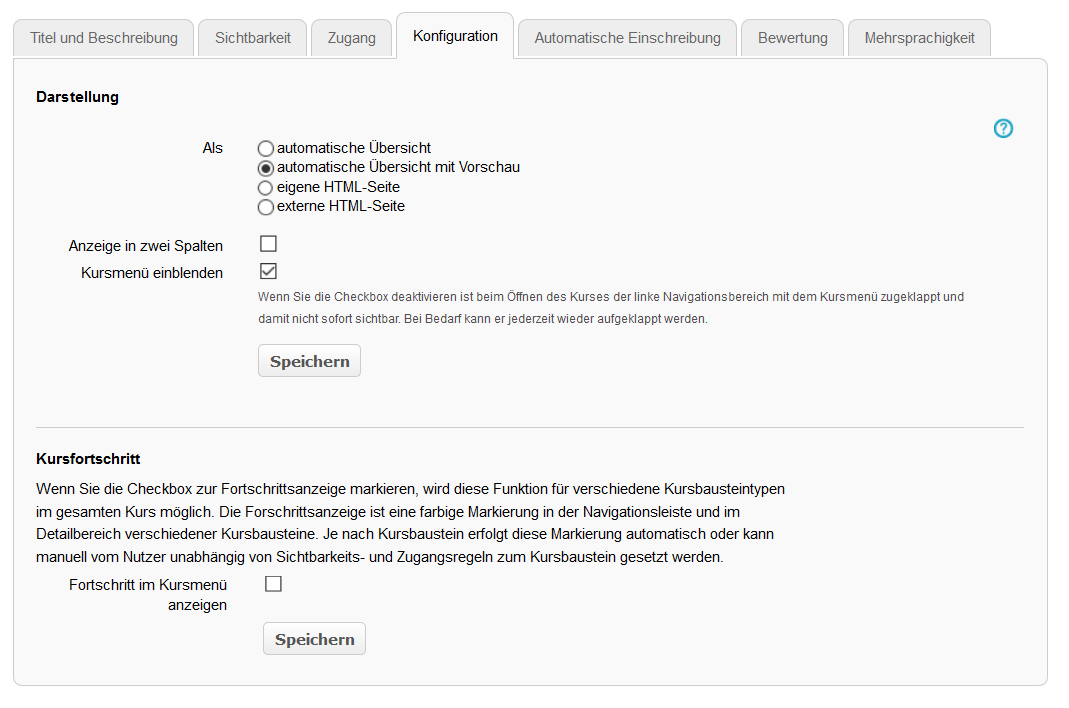
| Titel, Untertitel und Beschreibung der ausgewählten, untergeordneten Kursbausteine werden angezeigt. | Automatische Übersicht mit Vorschau | Titel, Untertitel, Beschreibung sowie eine Vorschau des Inhalts der ausgewählten, untergeordneten Kursbausteine werden angezeigt. | | Sie können eine von Ihnen gewählte und anpassbare Datei aus dem Ablageordner (*.html, *.htm) anzeigen lassen. | | Mit dieser Option haben Sie die Möglichkeit, eine externe HTML-Seite als Übersichtsseite zum Kurs einzubinden. |
InformationAusführliche Informationen zur Konfiguration der einzelnen Darstellungsoptionen enthält die Seite zum Kursbaustein Struktur. | Kursmenü einblenden: Mit aktivierter Checkbox wird in der Kursansicht das Kursmenü auf der linken Seite sichtbar ausgeklappt dargestellt. Wenn Sie die Checkbox deaktivieren, wird der linke Menübereich beim Öffnen des Kurses zunächst zugeklappt dargestellt und ist damit nicht sofort sichtbar. Bei Bedarf kann das Kursmenü jedoch - unabhängig von der Einstellung in dieser Checkbox - jederzeit wieder manuell vom Nutzer aufgeklappt werden. | Wenn Sie die Checkbox zur Fortschrittsanzeige markieren, wird diese Funktion für verschiedene Kursbausteintypen im gesamten Kurs möglich. Die Fortschrittsanzeige ist eine farbige Markierung in der Navigationsleiste und im Detailbereich verschiedener Kursbausteine. Je nach Kursbaustein erfolgt diese Markierung automatisch oder kann manuell vom Nutzer unabhängig von Sichtbarkeits- und Zugangsregeln zum Kursbaustein gesetzt werden. Weitere Informationen enthält der Abschnitt Kursfortschritt. |
|
|---|
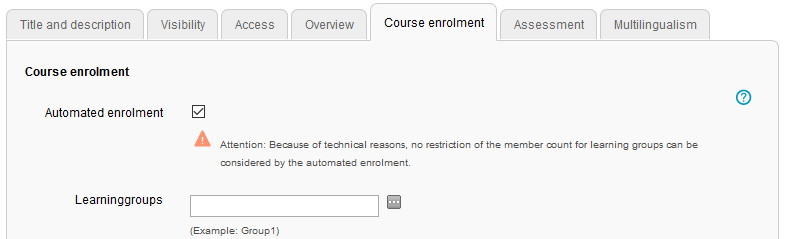
| Nutzer, welche den Kurs zum ersten Mal öffnen, können automatisch in die gewählte Gruppe eingeschrieben werden. Bilder dieser Funktion aus Nutzersicht und Hinweise zur Konfiguration enthält die Seite Automatische Einschreibung in einen Kurs. |
|---|
| Im Kurshauptknoten und auch im Kursbaustein Struktur können Sie Bewertungsinformationen anderer Kursbausteine summieren, wodurch eine übergreifende Bewertung entsteht. Wählen Sie im Tab Bewertung die gewünschte Bewertungskategorie (Punkte, Note, Bestanden-Status) und anschließend die dafür notwendigen Kursbausteine aus, die in die Gesamtbewertung des Strukturbausteins eingehen sollen. Ausführliche Informationen zu den Konfigurationsmöglichkeiten in diesem Tab finden Sie im Kapitel Bewertung. InformationDie Bewertung von Lernenden ist nur in Kombination mit einer Lerngruppe möglich, d. h. die zu bewertenden Teilnehmer müssen in einer Lerngruppe zum Kurs eingetragen sein. |
|---|
| Zu einzelnen Kursbausteinbereichen können in diesem Tab verschiedene Übersetzungen hinterlegt werden. |
|---|
Zusätzlich sind folgende Funktionen zum Kurs verfügbar:
| Open the course you wish to edit in the course view. | |
| Use the pencil icon at the top of the page to open the editing mode. |
| In the opened course editor, you can now customise your course content and add course elements. |
Configurations in the main course node
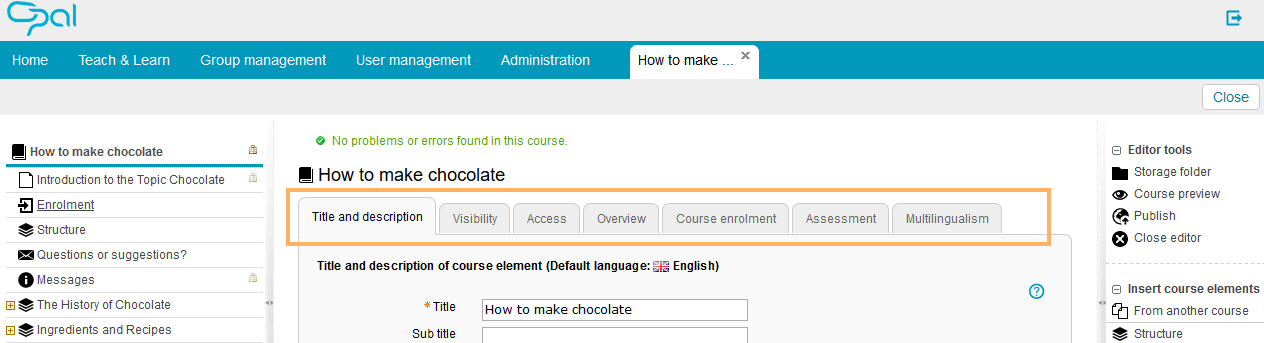
The course editor provides several tabs to configure the main course node:
Title and description | |
|---|
| |
|---|
|
|---|
| This tab allows you to adjust the presentation of the course's overview page and to activate the course progress indicator. | The title, subtitle, and description of the selected child course elements are displayed. | Automatically generated overview incl. preview | The title, subtitle, description, and a preview of the content of the selected child course elements are displayed. | | You can display a file of your choice from the storage folder (*.html, *.htm). | | This option allows you to embed an external HTML page as a summary page in the course. |
InformationFor more detailed information on the configuration of the individual presentation options, refer to the help page of the course element Structure. Show course menu: If the checkbox is enabled, the course menu on the left side of the course view will be displayed as unfolded. If the checkbox is not enabled, the menu will be shown collapsed when opening the course, i. e. it will not be immediately visible. If necessary, the course menu can be opened manually by the user at any time – regardless of which option is chosen. | | If you enable the course progress indicator, this function will be available for different types of elements throughout the course. The course progress indicator is a coloured marker in both the navigation bar and the detailed view of various course elements. Depending on the course element, the colour marker is set automatically or manually by the user regardless of the course's visibility and access rules. For more information, see the section Course progress. |
|
|---|
| Users who open the course for the first time, can be automatically enrolled in the selected group. This does not apply to system administrators, guests, learning resource administrators, or course owners, nor to members and tutors of the group.
To enable automated enrolment, proceed as follows...
| Open the course and switch to the course editor. | | | Open the tab Course enrolment from the course settings. | | Activate the checkbox Automated enrolment . | | As a next step, define the learning groups to which the learners will be added. | | Confirm your entries with Save . | | After you have published the course, the automated enrolment will be active. InformationIf automated enrolment is enabled, the learner will be asked whether they agree with the enrolment when entering the course. |
|
|---|
| In the main course node, as in the course element Structure , you can collect assessment information of other course elements, resulting in an overall assessment. Select the desired assessment category (score, mark, passing score) in the tab Assessment and the course elements that are to be included in the overall assessment of the structural element. Further information is provided in the chapter Assessment. InformationThe assessment of learners is only possible in combination with a learning group, i. e. the participants to be assessed must be enrolled automatically or manually in a learning group of the course. |
|---|
| In this tab, different translations can be added to individual course element areas. |
|---|
The following course functions are additionally available: