Open Notifications
To access your notifications, you have two options:
Option 1: Quick Access | Desktop | Mobile |
|---|---|---|
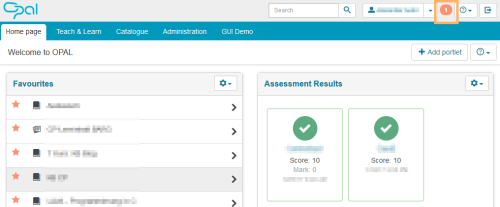
Click on the circle icon next to your user name in the desktop view to open the quick overview of your notifications. |
|
|
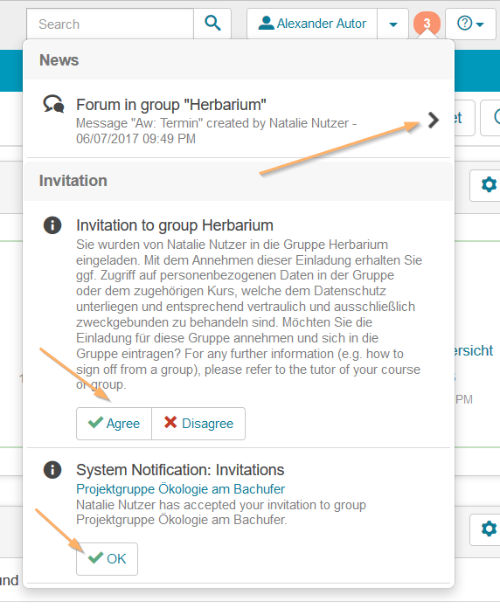
An overview opens displaying the latest news and invitations which are stored for you in the system. Click on a news item or on the arrow behind the notification to access the content directly. Some notifications will require action from you. For invitations, for example, the buttons Agree and Disagree will show up. System messages can be marked as read via the OK button. Invitations contain a direct link to the corresponding resource so that you can verify it before confirming the invitation. To close the opened notification area, click again on the selected icon. |
| (There are no differences between the desktop and the mobile view) |

Option 2: News area | Desktop | Mobile | ||||||
|---|---|---|---|---|---|---|---|---|
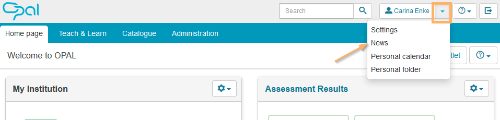
A larger view of all notifications is available in the area News. To open it, click on the down arrow right next to your name in the header area of the desktop view. Select the entry News from the drop-down list.
|
|
| ||||||
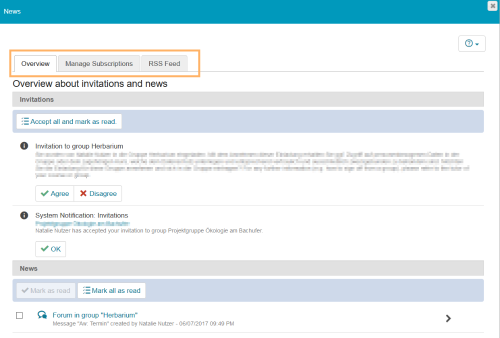
A new News window opens. In the desktop view, you will see several tabs. In the mobile view, you will only see the news.
|
|
|