Guide to Using the Safe Exam Browser (SEB)
 The Safe Exam Browser (SEB) is a web browser that creates a safe working environment on the installed computer. It can be used to control access to system functions, other applications, websites and data during the exam.
Comprehensive information on installing and using the Safe Exam Browser can be found in the SEB User Manual.
The following information provides an easy introduction to the use of the Safe Exam Browser in the context of the learning platform OPAL. ONYX test content can be integrated using the course element Test, which provides comprehensive functions in the exam mode to conduct electronic exams. Enable the option Exam browser.
Further information can be found on the OPAL help pages for the exam mode.
SEB download and installation
The current SEB version can be downloaded by using the following link: https://www.safeexambrowser.org/download_en.html#Windows
Start the file SafeExamBrowserInstaller.exe and follow the program's installation instructions.
We recommend the use of SEB version 3.7
If you were previously using an older version with personalised configurations, please uninstall it before carrying out a new installation. This way you make sure that no old configurations are transferred, that could lead to an incorrect performance in the new version. Please refer to Download/Installation for information on uninstalling the SEB.
SEB configuration
SEB integrates a comfortable configuration tool, which will be automatically installed upon installation. To start the configuration tool, use the file SEBConfigTool.exe in the SEB installation directory.
The configuration tool organises the most important SEB functions into individual tabs.
A detailed overview of all SEB settings can be found in the SEB User Manual (Configuration): https://www.safeexambrowser.org/windows/win_usermanual_en.html#configuration
The following configuration settings are recommended. Please note that additional settings, e.g. network settings, may be helpful for your application scenario. Check these settings together with the system administrator and the examiner and adapt the default setting to the system infrastructure and usage scenario if necessary.
Step 1: Basic settings in the tab "General"
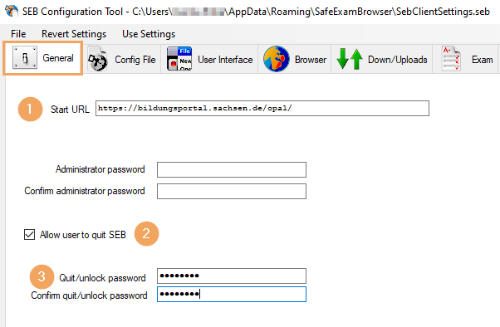
1 | Set Start URL of the favoured LMS system as OPAL home page.
|
|
2 | Configuration to quit the SEB Specify how to quit the SEB: Enable the checkbox "Allow user to quit SEB": If the checkbox is disabled, quitting the SEB will be prohibited. Please note that in this case, a system restart is absolutely necessary to exit and quit the SEB! For most scenarios, it makes more sense to enable the checkbox "Allow user to quit SEB" and to configure an individual password under "Quit/unlock password” that will need to be entered to quit the SEB. | |
3 | Enable the "Ignore exit keys" checkbox: Please also enable this checkbox. This will disable quitting via the function keys. | |
4 | Quit/unlock password: Configure here an individual password to quit the SEB. This will also automatically disable the exit keys. |
Step 2: Browser view mode settings in the tab “User Interface”
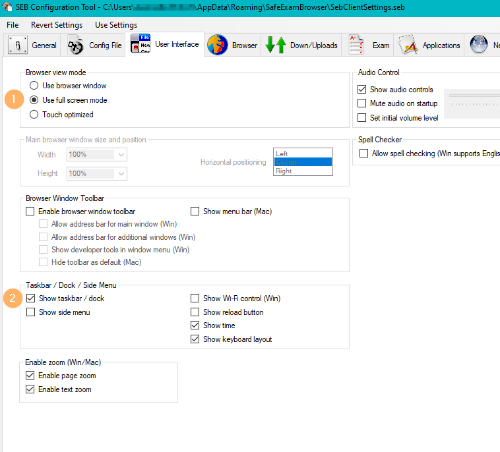
1 | Browser view mode: Pick a full screen mode. Enable the option Use full screen mode if the exam is to be completed only with ONYX. |
|
2 | SEB Taskbar/dock: Reduce the number of SEB functions displayed to the examinee. |
Step 4: Saving the configuration file in the tab “Config File”
To apply the configuration for using the SEB, you must save the configuration file.
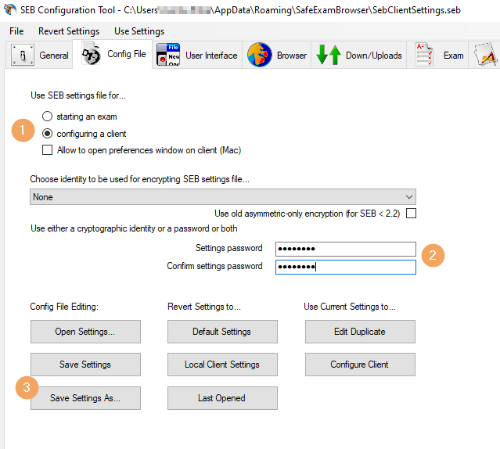
1 | Use SEB settings for... Enable the option configuring a client to save all configuration settings to a file that allows for a quick transmission to other PCs. |
|
2 | Use either a cryptographic identity or a password or both: Protect your configuration file against changes with a password. This password must be specified once during the initial configuration when transferring the configuration to another PC. After setting up this file as the default configuration, this will no longer be possible without further modifications. | |
3 | Config File Editing: Save the configuration file (*.seb) by clicking on Save Settings or Save Settings As.... The file path will also be displayed in the title bar of the configuration tool after saving the file.
|

To automatically configure an installed Safe Exam Browser, start the saved configuration file (*.seb) once on the target system by double-clicking it. To load the configuration data for the first time, you will need the configured password (configuration file protection). The installed SEB browser will be configured accordingly and use the stored settings from the next restart.
Start SEB
| Start the Safe Exam Browser by opening the installed application or by starting the file SafeExamBrowser.exe. The Safe Exam Browser will automatically load the last loaded configuration. Further information can be found in the SEB User Manual (Starting and Quitting SEB): https://www.safeexambrowser.org/windows/win_usermanual_en.html#starting. |