

Set Options
Use the various configuration options in the tab Options to adapt questions according to your needs.

Content
Related topics
You can allow learners to answer individual questions multiple times. During the test, your students will see the number of attempts available for each question. They can submit their answer and, if further attempts are possible, answer the same question again.

In the ONYX Editor, you can decide whether the settings for the number of available attempts should be applied to the entire test or only to selected sections or individual questions.
To do this, go to the Options tab to define your preferred settings:
| If you, for example, set the maximum number of attempts to find a solution to 2, the learner can answer each question in the test twice. |  |
If you wish to set the number of attempts individually for specific sections or questions, disable the option Apply the configuration of the superior element. Now, you can set the number of attempts individually for the section or question. The default is always one attempt. To allow an unlimited number of attempts, enter 0 in the input field. | 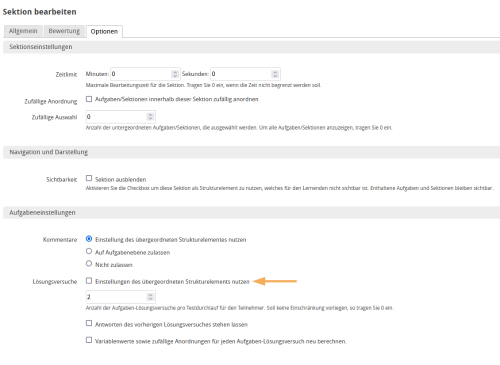 |
| Once a new attempt is started, the previous answer entry is cleared. If you want to give participants the option to modify their answer based on their latest response, activate the option Keep answers from previous attempts. |  |
| If your task has variables, you can use the option Recalculate variable values and random arrangements for each task attempt to specify whether a new attempt should be made based on new initial values. |