

Configuration of the Size and Spacing of Assignment items (CSS)
ONYX allows you to customise the design of assignment items with CSS. By using CSS, users can individually alter assignment item attributes, such as size and spacing, in match interactions.
The procedure for changing the size and the spacing of assignment items is explained by the example of an assignment task on the subject of Johann Wolfgang von Goethe. The assignment items contain text quotations from the works of the poet. The default display of the assignment task restricts the assignment items to 300 pixels (px) width and provides only a small distance to the edge in order to optimise the space requirement and to optimally integrate picture media. For long text passages, however, a wider display of the boxes and an increased distance to the edge may be desired.
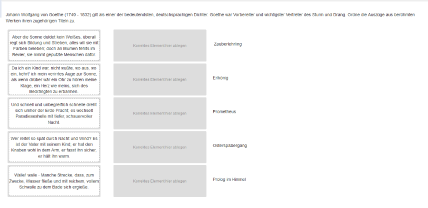
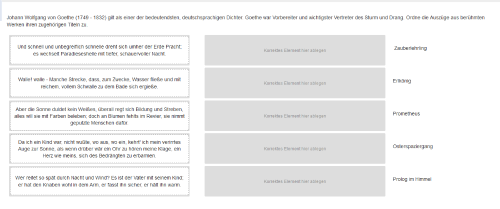
1. STEP: Create a new match interaction
The configuration is possible for the assignment items of a simple match interaction. To create the task, proceed as usual. Detailed instructions can be found in the help section Match interaction.
2. STEP: Configure assignment items (CSS)
The individual configuration for the size and distance of the content to the edge of the assignment items is done in a separate CSS file, which you can upload to any task.
You can use the following CSS statements as a template:
.interaction-match .dragCont div {padding: 10px;}
The setting min-width defines the size of the assignment items. The default setting, if no CSS configuration is present, is 300 px.
The setting padding defines the distance of the content to the edge of the assignment items. The default setting, if no CSS configuration is present, is 0 px.
3. STEP: Add the CSS file to the task
Save your CSS statement in a CSS file *.css. The CSS file can be uploaded to the tab Options under Layout setting. Detailed instructions can be found in the help section Create task > Layout settings.