

Set Section Options
Use the various configuration options in the Options tab to adjust the section and its tasks to suit your needs.
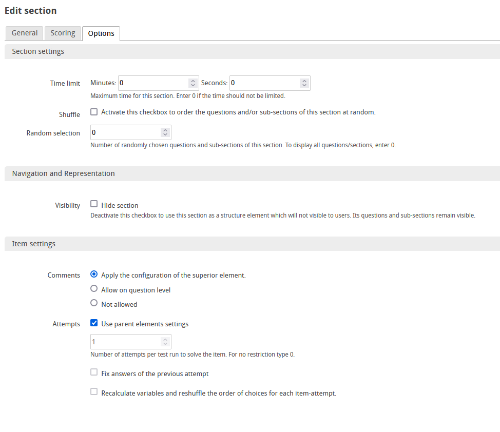
Section settings
Time limit
The author can define a processing time for the entire test or individual test sections. The remaining processing time will be displayed to the participant during the testing process, accurately to the second.

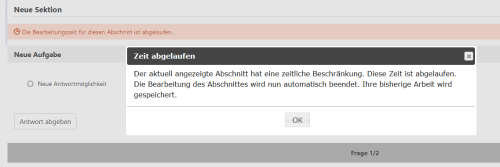
After the time has expired, a message will be displayed to the participant indicating that the sections and tasks can no longer be processed. Once the time allotted for the test has expired, it ends automatically.
Shuffle
Enable Shuffle if you want the tasks or subsections contained in the section to be mixed according to the order in which they are displayed.
If you want the tasks to be consecutively numbered despite random arrangement, you can hide the task titles in the Test Procedure Configuration. In this case, the tasks will be numbered automatically.
Random selection
The random selection allows the participant to view only some element items (tasks or subsections) contained in the section. In this way, you can store multiple, comparable tasks from which one is selected at random. Please make sure that the tasks have equal maximum scores. Only then will it be possible to compare the test runs and to achieve the maximum number of possible test points regardless of the task arrangement.
Example "random selection"
In a preliminary math test, the topics "algebra", “calculus", and "stochastics" are to be assessed. You want each participant to be allocated an easy, a moderately difficult, and a difficult task per topic. The test should be compiled randomly, with one task selected at random from a set of comparable tasks for each test call.
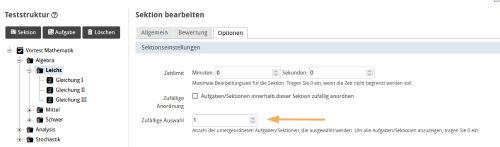
| First of all, an appropriate test structure needs to be defined. Each topic is assigned three subsections: "easy", "moderate", and "difficult". For each of these sections, a task selection is stored, and the random selection is set to the value 1. The subsections and their names are not supposed to be visible for the participant during the test run, so the "hide section" setting needs to be activated for these sections. |
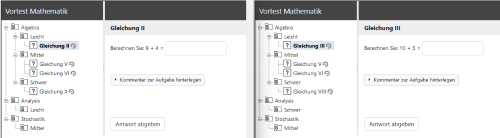
| For each test run, a new set of tasks is now randomly displayed to the participant. If you select tasks at random, it is advisable to hide the task titles. Further information on hiding task titles can be found in the help section: Test Procedure Configuration. |
Navigation and Display
Visibility
You can partially or completely hide the section structure from the participant. To do this, activate the option "Hide section".
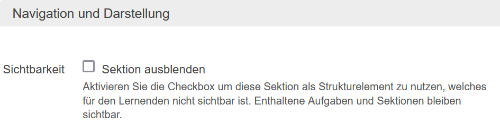
Only the structural element with the title of the section in the test navigation is hidden. The contained tasks and potential subsections are still displayed to the participant.
If a section has a stimulus, it and the section title are displayed in the task area. The page How visibility settings for sections affect test navigation provides examples and shows their effect on the navigation flow in a test.
| Example test with ... | Test execution from the user's perspective | Test configuration in the ONYX Editor |
|---|---|---|
... default setting for the section visibility. The section title is visible in the navigation. | 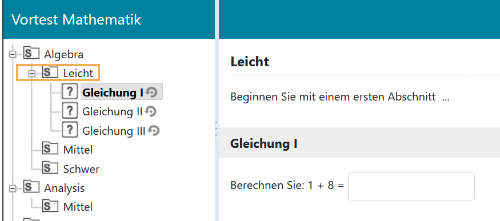 | 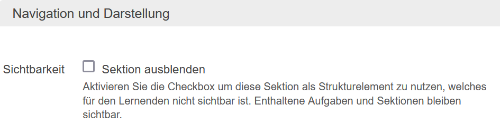 |
... activated checkbox to hide the section. The “Easy” section (here without stimulus) is no longer visible in the test navigation. | 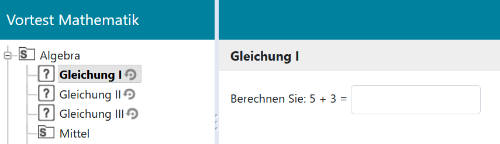 | 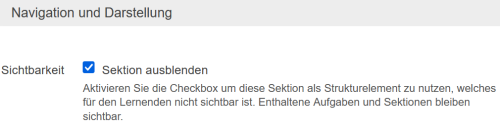 |
Questions settings
Comments
Comments allow the participant to leave feedback on a question for the test evaluator. Especially in the case of closed question forms with limited response options, the comment function offers a valuable support possibility for participants, e.g. if they do not understand the question, perceive it as inaccurate, or do not find their solution in the answers provided to them.
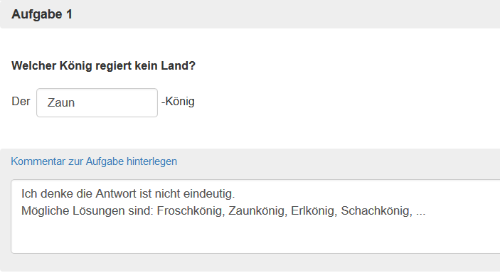
In the ONYX Editor, you can decide whether the comment settings are supposed to be applied to the entire test or only to selected sections or individual questions.
The tutor can view the comments in the participant's results view. Further information are provided in the help section Results view: View participant.
To use the comment function for a section, please proceed as follows:
- Switch to the tab Options in the relevant area.
- In the section Options, remove the check mark for "Apply the configuration of the superior element" under comments and select the setting "Allow on question level" to enable comments for the relevant area or "Not allowed" to disable comments explicitly for this area.

Attempts
You can allow learners to answer individual questions multiple times. During the test, your students will see the number of attempts available for each question. They can submit their answer and, if further attempts are possible, answer the same question again.

In the ONYX Editor, you can decide whether the settings for the number of available attempts should be applied to the entire test or only to selected sections or individual questions.
To do this, go to the Options tab to define your preferred settings:
| If you, for example, set the maximum number of attempts to find a solution to 2, the learner can answer each question in the test twice. |  |
If you wish to set the number of attempts individually for specific sections or questions, disable the option Apply the configuration of the superior element. Now, you can set the number of attempts individually for the section or question. The default is always one attempt. To allow an unlimited number of attempts, enter 0 in the input field. | 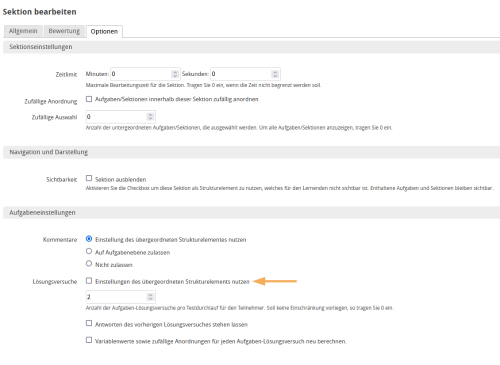 |
| Once a new attempt is started, the previous answer entry is cleared. If you want to give participants the option to modify their answer based on their latest response, activate the option Keep answers from previous attempts. |  |
| If your task has variables, you can use the option Recalculate variable values and random arrangements for each task attempt to specify whether a new attempt should be made based on new initial values. |